
Conical Pendulum Meets Uniform Circular Motion: Parameterized Vector Geometry
Loading the math board and drawing, please wait…
In collections
The Domain of the Time (intuitive kinematics)
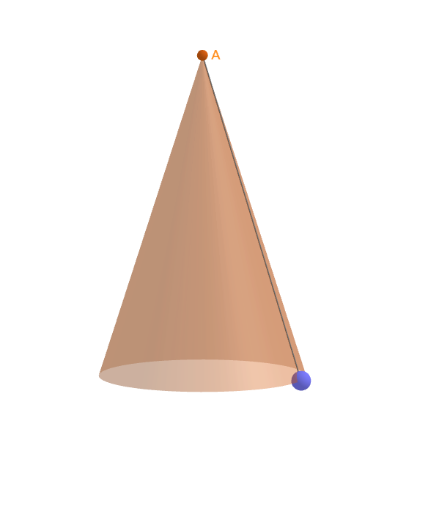
This example visualizes a conical pendulum’s motion under geometric constraints and links it to the trajectory and direction structure of uniform circular motion (UCM). The key ideas include vector-based representation of motion, circle geometry, using angle measures to relate direction changes, and a parameter/animation-driven interpretation of position over time. Construction emphasizes: Circle and Point to create the circular path and the moving mass, Line and Segment to form geometric connections used for direction/constraint visualization, Vector and Angle to compute and display direction relationships (e.g., velocity/displacement-related vectors), OrthogonalPlane plus Intersect to build and use relevant orthogonal projections/constraint intersections, and Cone to represent the conical surface of the pendulum’s spatial geometry. Supporting commands like If and animation controls (e.g., anima/reset/start) allow interactive parameter variation and dynamic updating. Suitable for upper secondary to introductory university modeling and visualization of circular motion and vector geometry.
GeoGebra Commands & Parameters
Circle(O, l) → cirPoint(cir) → MLine(O, M) → rrPoint(Segment[(0, 0, 1), (0, 0, 25)]) → ALine(A, M) → mLine(M + g, m) → qSegment((0, 0, 0), A) → hSegment(O, M) → rIf(Length[reg] ≟ 1, {reg(1)}, Sequence[reg(k) - reg(k + 1), k, 1, Length[reg] - 1]) → regDifmean(regDif) → TSegment(A, M) → jOrthogonalPlane(M - g, g) → pIntersect(p, m) → BIntersect(q, rr) → CVector(M, C) → cVector(M, B) → ThiloAngle((10, 0), O, Rotate[(10, 0), ω]) → αCone(Circle[O, l], h) → a, d, bVector(M, M - g) → g'Segment(O, M) → r'
AI Drawing Prompt Reference
Draw a conical pendulum with a circular path and a moving mass point. Start by drawing a circle and then taking a point on the circle as the mass point. Draw a line from the center to the mass point and a vertical segment as a reference. Use parameterized vectors and angles to calculate direction relationships and construct a conical surface to represent the spatial geometry of the pendulum. Finally, draw a vector from the mass point to the center and the intersection of a plane perpendicular to the center with a line, forming direction constraints.
The prompt above was compiled from the original drawing commands and is for reference only.