
Writing Equations to Represent Multiplication with Interactive Graphing
Loading the math board and drawing, please wait…
This example demonstrates how to turn multiplication into a geometric/visual model by writing equations that represent the product through measurable or coordinate-based quantities. It focuses on equation-based modeling: expressing multiplication using variable coefficients, then linking the resulting algebraic relationship to graph elements so the “product” becomes something students can see and reason about. Key mathematical ideas include parameters, coefficient-driven expressions, conditional selection of cases, and interactive construction that updates displayed results. In GeoGebra, the construction uses Random and If to generate or choose parameter settings, TableText to present equation text and computed relationships, and multiple slider-like parameters/objects (e.g., coefficientX1–coefficientX6, StartingX1/IntervalX1, StartingX2/IntervalX2) to drive the visualization. Buttons (button1, button2) and ShowAnswers support guided exploration and immediate verification, while labeled graphical entities (e.g., Y1 and yLabel1–yLabel6 plus supporting points/lines) provide the geometric interpretation of the multiplication equation. Suitable for middle school through early high school learners, especially for lessons that connect algebra (equations) with graphing and geometry interpretation.
GeoGebra Commands & Parameters
Random(1, 100) → coefficientX2Random(1, 100) → coefficientX3Random(1, 100) → coefficientX4Random(1, 100) → coefficientX5Random(1, 100) → coefficientX6Random(1, 100) → coefficientX1If(ShowAnswers ≟ true, (("y = " * coefficientX1) * "x"), "y") → yLabel1If(ShowAnswers ≟ true, (("y = " * coefficientX2) * "x"), "y") → yLabel2If(ShowAnswers ≟ true, (("y = " * coefficientX3) * "x"), "y") → yLabel3If(ShowAnswers ≟ true, (("y = " * coefficientX4) * "x"), "y") → yLabel4If(ShowAnswers ≟ true, (("y = " * coefficientX5) * "x"), "y") → yLabel5If(ShowAnswers ≟ true, (("y = " * coefficientX6) * "x"), "y") → yLabel6TableText({{A1, B1}, {A2, B2}, {A3, B3}, {A4, B4}, {A5, B5}, {A6, B6}, {A7, B7}}, "|_") → Table1TableText({{D1, E1}, {D2, E2}, {D3, E3}, {D4, E4}, {D5, E5}, {D6, E6}, {D7, E7}}, "|_") → Table2TableText({{G1, H1}, {G2, H2}, {G3, H3}, {G4, H4}, {G5, H5}, {G6, H6}, {G7, H7}}, "|_") → Table3TableText({{J1, K1}, {J2, K2}, {J3, K3}, {J4, K4}, {J5, K5}, {J6, K6}, {J7, K7}}, "|_") → Table4TableText({{M1, N1}, {M2, N2}, {M3, N3}, {M4, N4}, {M5, N5}, {M6, N6}, {M7, N7}}, "|_") → Table5TableText({{P1, Q1}, {P2, Q2}, {P3, Q3}, {P4, Q4}, {P5, Q5}, {P6, Q6}, {P7, Q7}}, "|_") → Table6
AI Drawing Prompt Reference
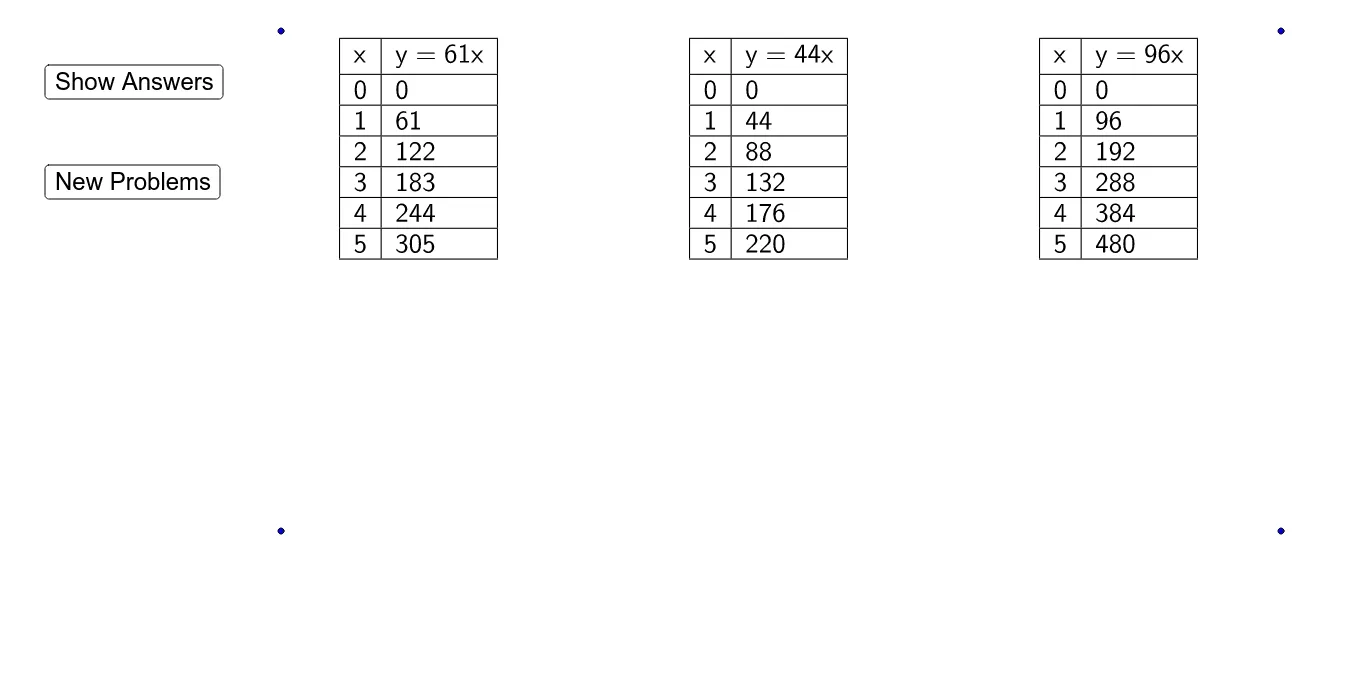
Create a graph with six linear functions in the form y = kx, where k is a random integer between 1 and 100. Each function has a label showing its equation. Use a random number generator to create six different k values, then use an If statement to display or hide the labels based on the ShowAnswers value. Plot these linear functions and display their tables in the graph.
The prompt above was compiled from the original drawing commands and is for reference only.