
Truncated Cone: 3D Construction and Rotation in GeoGebra
Loading the math board and drawing, please wait…
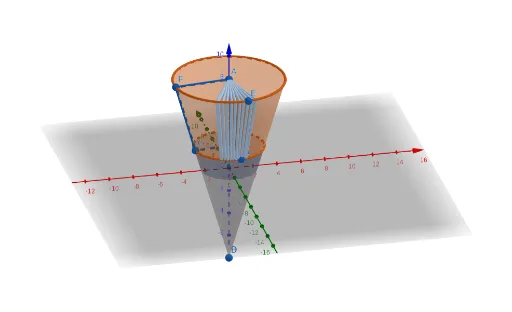
①This example demonstrates how to construct a truncated cone (frustum) in GeoGebra's 3D view and rotate it to visualize its solid shape. ②Core mathematical concepts include solid geometry definitions of cones and frustums, along with right triangles, natural numbers, special points, power functions, and logarithmic functions, which may serve as auxiliary parameters or annotations. ③Construction highlights: based on the summary, the Cone command creates the cone, while Point, PointIn, Polygon, and Segment define key points, cross-section polygons, and edges; Rotate is used to spin the object. Objects include points A, B, C, D, E, F, G, H, I, segments a, b, c, d, e, f, g, and auxiliary elements q1, a_1, f_1, g_1, c_1, h, n, etc., illustrating a step-by-step build from basic elements to a complex solid. ④This is suitable for high school or early college students learning solid geometry, 3D modeling, and GeoGebra skills, and for teachers demonstrating frustum generation and properties in class.
GeoGebra Commands & Parameters
Cone(A, B, 4.6) → a, c, bPoint(zAxis) → CCone(C, D, 2.9) → d, e, fPoint(c) → EPointIn(b) → FPointIn(f) → GPoint(e) → HPoint(c) → IPolygon(A, F, G, C) → q1, a_1, f_1, g_1, c_1Segment(A, C) → hRotate(q1, (-n), h) → q1'
AI Drawing Prompt Reference
Draw a truncated cone by first creating a base cone with point A and point B as the base circle centers and a height of 4.6, then creating a top cone with point C as the apex and point D as the base circle center and a height of 2.9. Place points E, F, G, H, and I on the base cone, and draw a quadrilateral q1 with points F, G, and C. Connect point A and point C to form a line segment h, and rotate quadrilateral q1 around h to get the rotated quadrilateral q1'.
The prompt above was compiled from the original drawing commands and is for reference only.