
Trapezium Area Demonstration by Malin Christersson
Loading the math board and drawing, please wait…
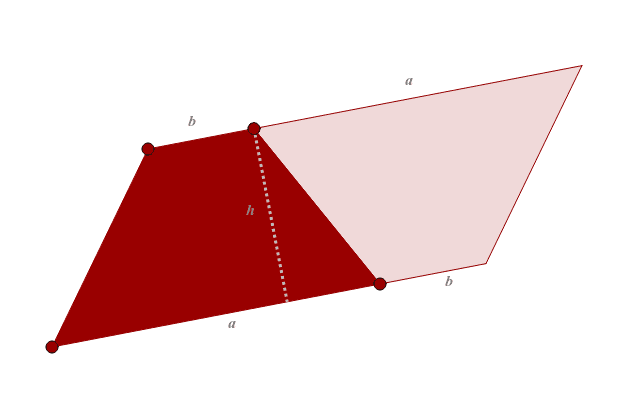
This example demonstrates the calculation of a trapezium's area, involving core concepts like trapezium definition, parallel line distance, similarity transformation, percentage calculations, and introductory fractal geometry. It is constructed using GeoGebra commands such as Ray, Line, Point, Polygon, OrthogonalLine, Intersect, Segment, Text, and Circle, making it suitable for middle school students and math enthusiasts for geometric visualization and calculation practice.
GeoGebra Commands & Parameters
Ray(D, RayPoint) → ray3Line(A, B) → aLineLine(D, aLine) → bLinePoint(ray3) → CPolygon(A, B, C, D) → poly1, a, b, c, dOrthogonalLine(C, aLine) → eLineIntersect(aLine, eLine) → OSegment(C, O) → hSeg1Segment(A, O) → bSeg2Text("a", Midpoint[a] + (0.1, (-0.1))) → aText1Text("b", Midpoint[c] + ((-0.1), 0.1)) → bText1Ray(D, C) → ray1Ray(A, B) → ray2Circle(C, a) → eIntersect(e, ray1, 1) → ECircle(B, c) → fIntersect(f, ray2, 2) → FPolygon(B, F, E, C) → poly2, b_1, f_1, e_1, c_1Text("a", Midpoint[C, E] + ((-0.1), 0.1)) → aText2Text("b", Midpoint[B, F] + (0.1, (-0.1))) → bText2Text("h", Midpoint[hSeg1] + ((-0.2), 0)) → hText1Segment(F, O) → bSeg1
AI Drawing Prompt Reference
Draw a trapezoid and demonstrate its area calculation. Start by constructing the trapezoid with its four sides and vertices, labeling the top and bottom bases. Then, draw a perpendicular line from one vertex of the top base to the bottom base to indicate the height. Next, use similarity transformation and percentage calculations to show a smaller trapezoid similar to the original, labeling its top and bottom bases. Finally, include text annotations and graphical comparisons to explain the area calculation method.
The prompt above was compiled from the original drawing commands and is for reference only.