
Trace the Unit Circle
Loading the math board and drawing, please wait…
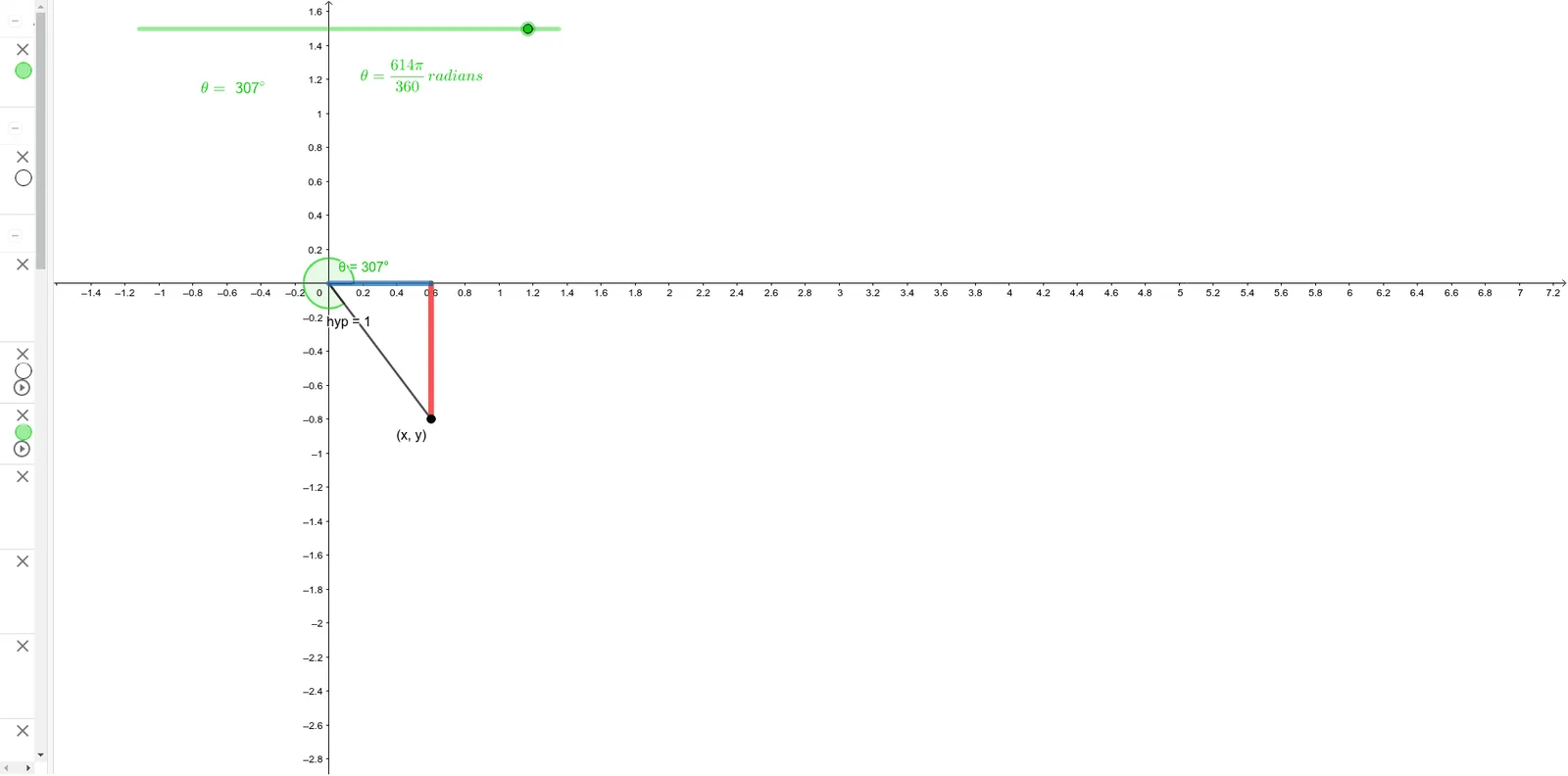
This example demonstrates how to dynamically trace a unit circle by rotating a point. It involves core math concepts like circles, trigonometric functions, vectors, and coordinate geometry. Construction highlights include using commands such as Rotate, Angle, OrthogonalLine, Intersect, Segment, Polygon, along with objects like O, I, T, θ, radians. Suitable for high school and above students learning circle geometry, trigonometric graphs, vectors, and coordinate geometry applications.
GeoGebra Commands & Parameters
Rotate(I, radians, O) → TAngle(I, O, T) → θOrthogonalLine(T, xAxis) → fIntersect(f, xAxis) → ASegment(T, A) → gPolygon(O, T, A) → triangle, hyp, opp, adj
AI Drawing Prompt Reference
Draw a unit circle centered at the origin with radius one. Place a moving point on the circle, starting from the intersection with the positive x-axis, and rotate it counterclockwise by any angle. Connect the center to the moving point to form a radius. From the moving point, drop a perpendicular line to the x-axis, marking the foot on the axis. Connect the moving point to the foot, creating a vertical segment. Connect the center, the moving point, and the foot to form a right triangle. Also, indicate the angle between the radius and the positive x-axis, showing its measure in radians. The figure should clearly display the unit circle, the rotating radius, the perpendicular, the right triangle, and the dynamic angle.
The prompt above was compiled from the original drawing commands and is for reference only.