
Scaling Rectangles
Loading the math board and drawing, please wait…
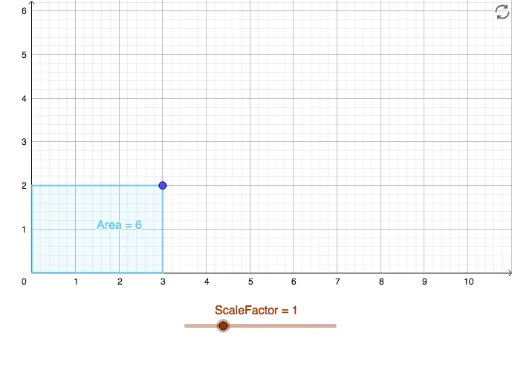
This example demonstrates how to dynamically change the size and area of a rectangle using a scaling factor. It involves core mathematical concepts such as ratios, similar figures, functional relationships, and coordinate transformations in analytical geometry. Key GeoGebra commands and objects used include Intersect, Polygon, ScaleFactor, points G, A, C, D, B, ScaleRectangle, parameters a, b, c, d, auxiliary points E, H, F, the original rectangle OrigRectangle, and coordinates e, f, g, h. It is suitable for high school mathematics classes to teach similarity transformations, function graphing, and analytical geometry applications, as well as exploring fractions and ratios.
GeoGebra Commands & Parameters
Intersect(xAxis, yAxis) → APolygon(A, B, C, D) → ScaleRectangle, a, b, c, dIntersect(xAxis, yAxis) → EPolygon(E, F, G, H) → OrigRectangle, e, f, g, h
AI Drawing Prompt Reference
Draw a Cartesian coordinate system. Construct a scalable rectangle with one vertex at the origin, its sides parallel to the axes. Then draw another rectangle similar to the first but with different dimensions, sharing the same origin as a corresponding vertex and keeping sides parallel. Use a scaling factor to control the side-length ratio of the second rectangle relative to the first, so that the areas of both rectangles change dynamically with the factor. Clearly show the vertices, sides, and the proportional relationship between the two rectangles, emphasizing their similarity before and after scaling.
The prompt above was compiled from the original drawing commands and is for reference only.