
Rotate Designs Demonstration
Loading the math board and drawing, please wait…
In collections
Rotations
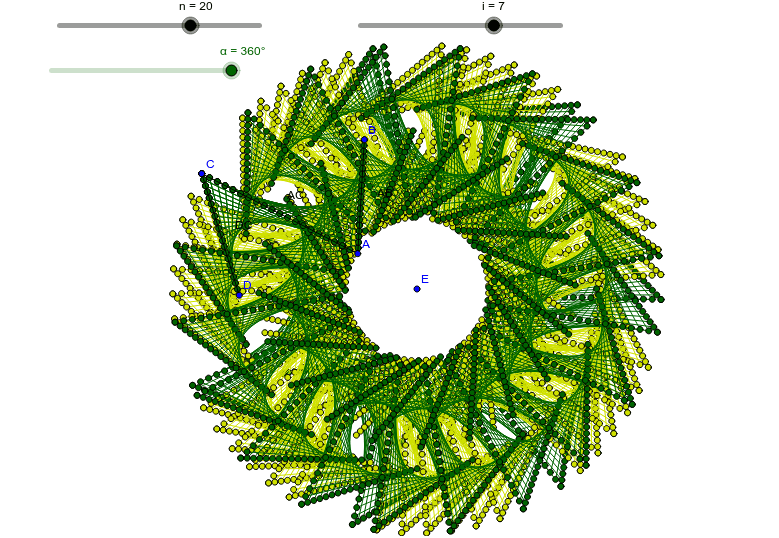
This example demonstrates methods to rotate designs using GeoGebra. It involves core math concepts like rotation, trigonometry, and geometric construction. Key GeoGebra commands and objects used include Segment, Sequence, n, A, B, C, AB, AC, list_{AB}, list_{AC}, line01, D, DC, list_{DC}, line02, E, listBig, i, roll_1, α, roll_2, roll. It is suitable for high school mathematics education, helping students understand rotational transformations and parametric equations.
GeoGebra Commands & Parameters
Segment(A, B) → ABSegment(A, C) → ACSequence(A + (i / n * (B - A)), i, 1, n) → list_{AB}Sequence(A + (i / n * (C - A)), i, 1, n) → list_{AC}Sequence(Segment[Element[list_{AB}, i], Element[list_{AC}, n - i]], i, 1, n) → line01Segment(D, C) → DCSequence(D + (i / n * (C - D)), i, 1, n) → list_{DC}Sequence(Segment[Element[list_{AC}, i], Element[list_{DC}, n - i]], i, 1, n) → line02Sequence(Rotate[listBig, ((k * 360) * ° / i), E], k, 1, i) → roll_1Sequence(Rotate[roll_1, ((k * 360) * ° / α), E], k, 1, α) → roll_2Sequence(Rotate[listBig, ((i * 360) * ° / n), E], i, 1, n) → roll
AI Drawing Prompt Reference
Draw a triangle and demonstrate how rotating its sides creates a pattern. Start by drawing two sides of the triangle, then generate multiple points on these sides and connect them to form lines. Next, create another set of lines based on one vertex and a side of the triangle. Finally, rotate the entire figure around a point multiple times to show the rotational effect.
The prompt above was compiled from the original drawing commands and is for reference only.