
Practice Drawing a Circle Matching an Equation
Loading the math board and drawing, please wait…
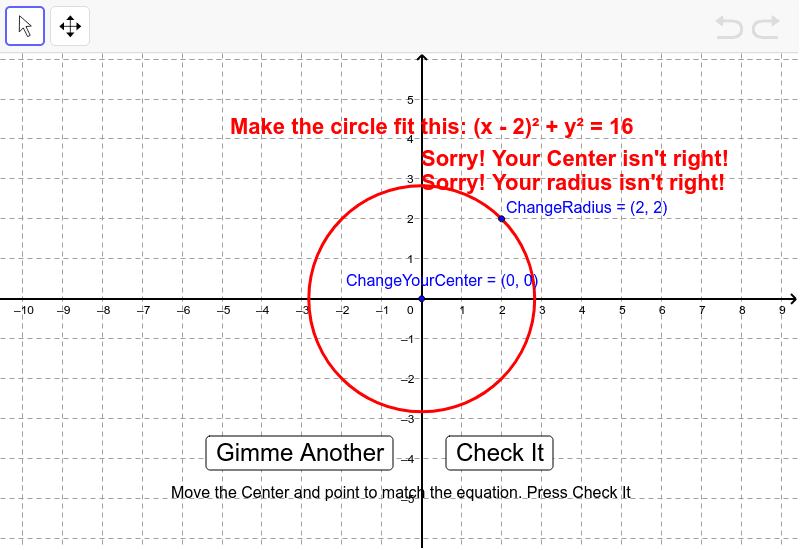
This example demonstrates how to draw a circle that matches a given equation. Core math concepts include circle equations, coordinate geometry, and function graphing. Using GeoGebra commands like Element, Random, Circle, Textfield, Distance, OrthogonalLine, users can interactively change the center and radius of the circle and check if it satisfies the equation. Suitable for high school students learning coordinate geometry and function graphing.
GeoGebra Commands & Parameters
Element(Dimension[CM], 1) → NumberOfEquationsRandom(1, NumberOfEquations) → WhichPointCircle(ChangeYourCenter, ChangeRadius) → eRandom(1, NumberOfEquations) → counterElement(CM, counter) → targetCircleCoefElement(targetCircleCoef, 3) → trElement(targetCircleCoef, 2) → tkElement(targetCircleCoef, 1) → thCircle(Target, TargetRadius) → cTextfield(h) → inputBox1Textfield(k) → inputBox2Textfield(r) → inputBox3Distance(ChangeYourCenter, ChangeRadius) → YourRadiusCircle(YourHKCenter, YourRadius) → dOrthogonalLine(Target, xAxis) → aOrthogonalLine(Target, yAxis) → bDistance(ChangeYourCenter, ChangeRadius) → distanceEF
AI Drawing Prompt Reference
Draw a circle with center at (0,0) and radius 5. There is a point on the circle at (5,0). The distance from the center to this point is 5. No other shapes are present.
The prompt above was compiled from the original drawing commands and is for reference only.