
Percentage and Circle Geometry Demo
Loading the math board and drawing, please wait…
In collections
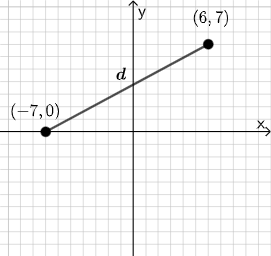
Open Middle: Distance in the Coordinate Plane (2)
This example demonstrates the geometric relationship between percentages, circles, numbers, cylinders, and circumcircles through interactive elements. It involves core math concepts like pi, cylinder volume, and inscribed polygons. Construction highlights include commands like PointIn, Segment, SurdText, Textfield, Point, If, Mode, Intersect, Polygon, and Angle in GeoGebra. Suitable for high school mathematics education, focusing on the integration of geometry and algebra.
GeoGebra Commands & Parameters
PointIn(e) → APointIn(e) → BSegment(A, B) → fSurdText(f) → text1Textfield(j) → InputBox1Textfield(k) → InputBox2Point(Circle[A, sqrt((100 * j) + (10 * k) + o)]) → CSegment(A, C) → lIf(m < i, "Too short!", m > i, "Too long!", "This value is correct!") → text7Mode(l1) → l2Intersect(eq1, p) → DPolygon(A, D, B) → t1, b_1, a_1, d_1Segment(A, D) → qSegment(D, B) → rAngle(B, D, A) → αTextfield(o) → InputBox3If(Length[l2] ≟ 0, "All digits are different!", "Some digits repeat.") → text8
AI Drawing Prompt Reference
Draw a circle and a sector with a central angle determined by the input values. First, select two points A and B on the circle and connect them to form segment f. Then, calculate the length of segment f and display it in a text box. Based on the values in input box 1 and input box 2, calculate the radius of the circle and draw a point C on the circle. Connect point A and C to form segment l, and compare the length of segment l with the value in input box 3 to display a corresponding message. Next, draw a rectangle with diagonals A and C, and within this rectangle, draw a triangle with vertices A, D, and B. Finally, calculate and display the angle α inside the triangle.
The prompt above was compiled from the original drawing commands and is for reference only.