
Optimization: Maximum Rectangle Inscribed in a Triangle
Loading the math board and drawing, please wait…
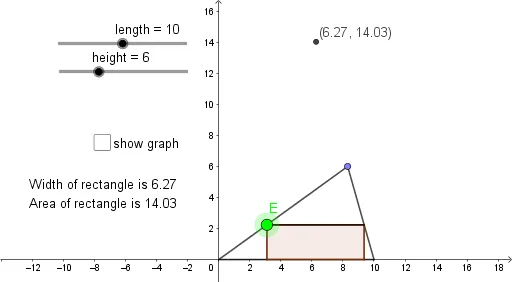
This GeoGebra example demonstrates how to construct a rectangle inscribed in a given triangle and dynamically explore how its area changes with position and dimensions, ultimately identifying the rectangle with maximum area. The core mathematical concept is geometric optimization: maximizing the area of a rectangle subject to the constraint that its vertices lie on the triangle's sides, involving similar triangles, proportional relationships, and the idea of function extrema. The construction uses GeoGebra commands such as OrthogonalLine, Point, Segment, Line, Intersect, Polygon, and Locus, defining triangle vertices A, B, C, then constructing perpendicular and parallel lines to determine rectangle vertices D, E, F, G, and using the locus tool to trace area variation. This is suitable for high school or early college students to understand constrained optimization problems and serves as a visual introduction to derivative-based extremum problems in calculus.
GeoGebra Commands & Parameters
OrthogonalLine(C, yAxis) → fPoint(f) → DSegment(A, D) → gSegment(D, B) → hSegment(B, A) → iPoint(g) → ELine(E, i) → jIntersect(j, h) → FOrthogonalLine(E, j) → kOrthogonalLine(F, j) → lIntersect(k, i) → GIntersect(l, i) → HSegment(G, E) → mSegment(E, F) → nSegment(F, H) → pPolygon(G, E, F, H) → q1, g_1, e, f_1, h_1Segment(E, F) → qLocus(I, E) → loc1
AI Drawing Prompt Reference
Construct a triangle with a fixed base. Place a moving point on one side, draw a line through it parallel to the base, intersecting the other side. From both intersection points, drop perpendiculars to the base, forming an inscribed rectangle. Drag the moving point to change the rectangle's dimensions, and trace the area of the rectangle as the point moves, revealing how the area varies and where it reaches its maximum.
The prompt above was compiled from the original drawing commands and is for reference only.