
Maximum Area of an Inscribed Triangle (r=5)
Loading the math board and drawing, please wait…
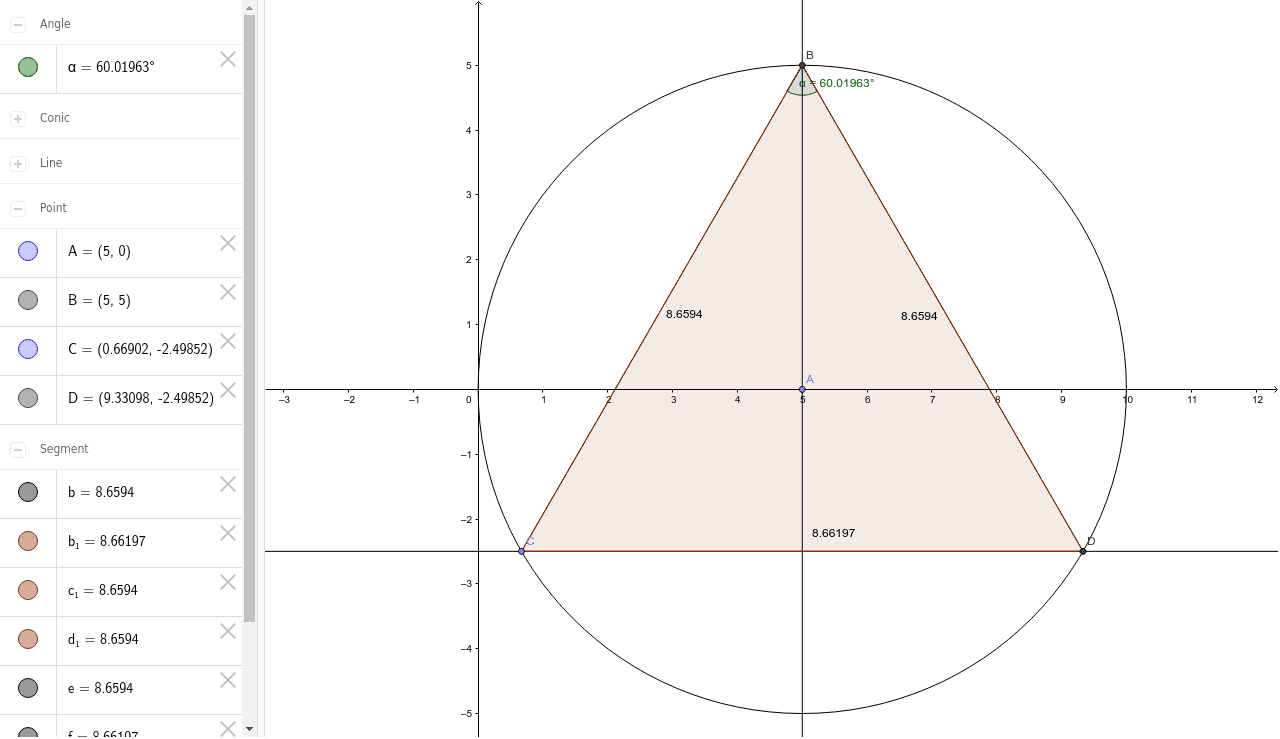
This GeoGebra example demonstrates how to find the maximum area of a triangle inscribed in a fixed circle with radius r=5. The core mathematical concepts include triangle area formulas, the relationship between central and inscribed angles, and optimization—the maximum area occurs when the triangle is equilateral. The construction uses commands such as Point, Circle, OrthogonalLine, Intersect, Segment, Line, Angle, PointIn, and Polygon to create circle c, center A, movable points B and C on the circle, and triangle poly1. Users can drag points or use sliders to observe how the area changes. This is suitable for high school or early college students learning geometry, trigonometry, and optimization. It provides an interactive way to verify that the maximum area equals (3√3/4)r² and to explore the geometric conditions for optimality. The example encourages dynamic exploration and helps build intuition about inscribed figures and extremum problems.
GeoGebra Commands & Parameters
Point(xAxis) → ACircle(A, 5) → cOrthogonalLine(A, xAxis) → aIntersect(c, a, 2) → BPoint(c) → CSegment(B, C) → bLine(C, xAxis) → dIntersect(c, d, 2) → DSegment(B, D) → eSegment(C, D) → fAngle(C, B, D) → αPointIn(c) → Pointc_1PointIn(c) → Pointc_2PointIn(c) → PointcPolygon(B, C, D) → poly1, d_1, b_1, c_1
AI Drawing Prompt Reference
Draw a circle with radius 5 centered on the x-axis. Create two draggable points B and C on the circle and connect them to form segment BC. Draw a perpendicular from the center to BC, intersecting the circle at point D. Connect BD and CD to form triangle BCD. Calculate the measure of angle BCD and show that the area is maximized when the triangle is equilateral. Allow dragging B and C to observe area changes and verify the maximum area formula.
The prompt above was compiled from the original drawing commands and is for reference only.