
Line Segment Length and Midpoint Coordinates on the Coordinate Plane
Loading the math board and drawing, please wait…
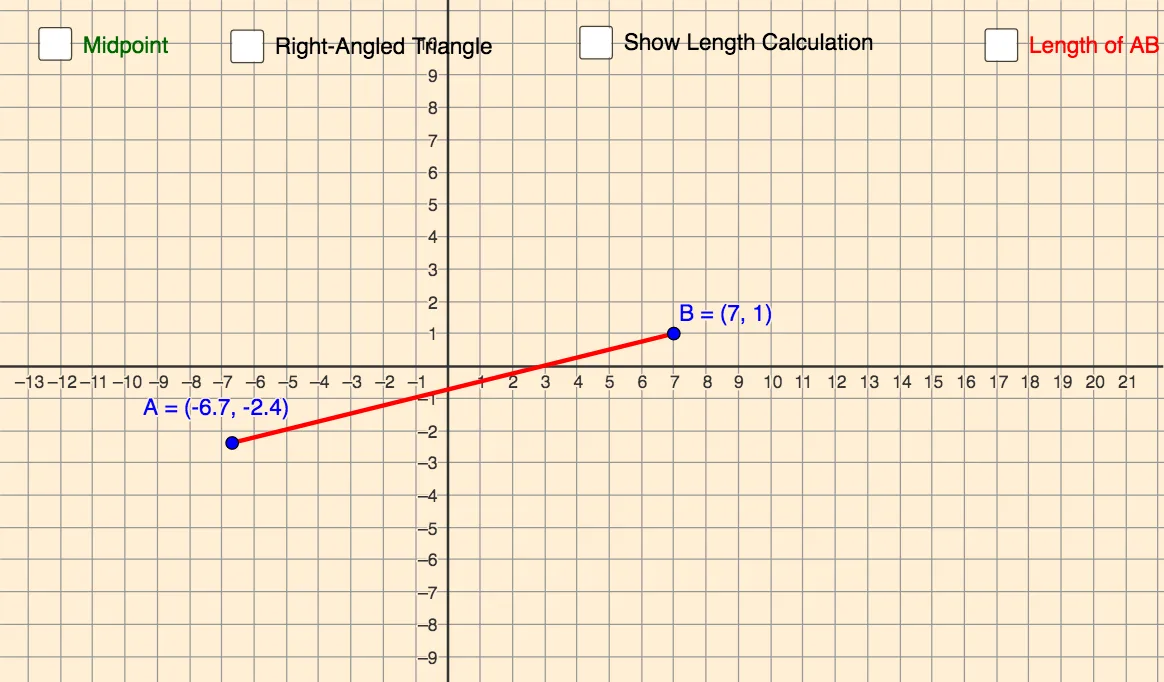
This interactive example lets students drag the endpoints A and B on the coordinate plane to compute both the length of the segment AB and the coordinates of its midpoint M. It focuses on coordinate geometry ideas: midpoint determination using geometric construction, the underlying two-point distance concept for segment length, and using auxiliary lines to guide the reasoning. Construction highlights: a Segment is created for AB; LineBisector (perpendicular bisector of AB) is used to locate the midpoint; Intersect finds the intersection point(s) that identify M; OrthogonalLine generates perpendicular helper lines needed for consistent construction; Angle is employed to visualize and check relevant angular relationships during the workflow. Key objects include points A, B, M and several auxiliary points/lines and annotations (e.g., a, b, c, d, e, C, α, text1). Suitable for middle school through high school students for teaching and practicing coordinate geometry, midpoint formula applications, and distance between points.
GeoGebra Commands & Parameters
Segment(A, B) → aLineBisector(a) → bIntersect(a, b) → MOrthogonalLine(B, xAxis) → dOrthogonalLine(A, d) → eIntersect(e, d) → CSegment(B, C) → fSegment(A, C) → gAngle(B, C, A) → αSegment(A, B) → iSegment(B, C) → nSegment(C, A) → p
AI Drawing Prompt Reference
Draw a coordinate plane with a draggable segment between two endpoints. Construct the perpendicular bisector of this segment and mark its intersection with the segment as the midpoint. From one endpoint, drop a perpendicular to the x-axis; from the other endpoint, draw a perpendicular to that vertical line, intersecting it at a new point. Connect this point to both endpoints to form a right triangle, and label the right angle at the intersection. Display the segment length and midpoint coordinates as text.
The prompt above was compiled from the original drawing commands and is for reference only.