
Kite Geometric Construction: From Basic Segments to Dynamic Polygons
Loading the math board and drawing, please wait…
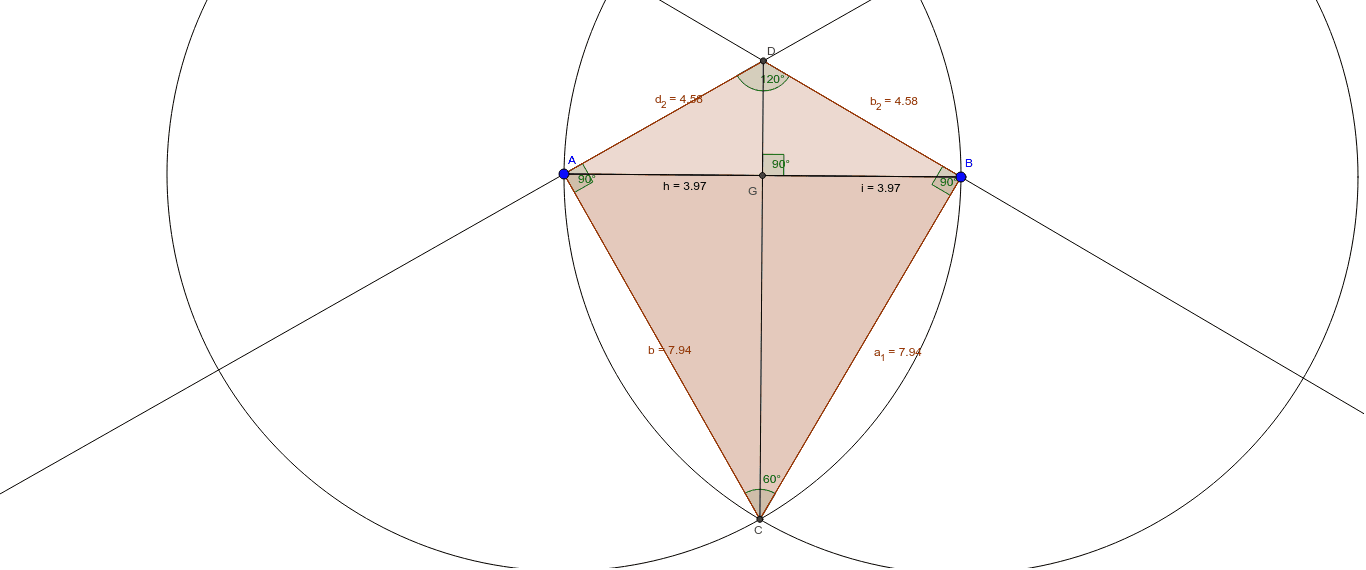
① This GeoGebra example demonstrates the step-by-step construction of a kite shape, highlighting its symmetry and angle relationships. ② Core mathematical concepts include the definition of a kite (two pairs of adjacent equal sides), perpendicular diagonals, angle calculations, and ratio properties, along with applications of linear equations and arithmetic operations. ③ Construction details: uses Segment to create edges, Circle and Intersect to determine key points, Polygon to form the kite body, OrthogonalLine to construct perpendicular diagonals, and Angle to measure angles; objects include points A, B, C, D, segments a, b, c, d, polygons poly1 to poly4, and angle variables α, β, γ, δ, etc. ④ Suitable for middle and high school geometry classes, this example helps students visualize kite properties, understand geometric construction processes, and explore dynamic angle changes, making it ideal for interactive lessons or math lab activities.
GeoGebra Commands & Parameters
Segment(A, B) → aCircle(A, B) → cCircle(B, A) → dIntersect(c, d, 2) → CPolygon(A, C, B) → poly1, b, a_1, c_1OrthogonalLine(A, b) → eOrthogonalLine(B, a_1) → fIntersect(e, f) → DPolygon(D, A, C, B) → poly2, d_1, a_2, c_2, b_1Polygon(D, A, C, B) → poly3, d_2, a_3, c_3, b_2Polygon(D, A, C, B) → poly4, d_3, a_4, c_4, b_3Angle(poly4) → α, β, γ, δSegment(D, C) → gIntersect(a, c_1) → EIntersect(a, c_1) → FIntersect(g, a) → GSegment(A, G) → hSegment(G, B) → iAngle(B, G, D) → ε
AI Drawing Prompt Reference
Draw a geometric kite shape, highlighting its symmetry and angle relationships. Start by connecting two points with a line segment, then draw circles centered at these points to find key intersection points. Form the kite body using line segments and polygons, and construct perpendicular diagonals. Measure and label the angles to show their equalities and complementary relationships. Finally, connect key points with line segments to complete the shape, and label the angle variables.
The prompt above was compiled from the original drawing commands and is for reference only.