
Interpreting a Cumulative Frequency Polygon (II)
Loading the math board and drawing, please wait…
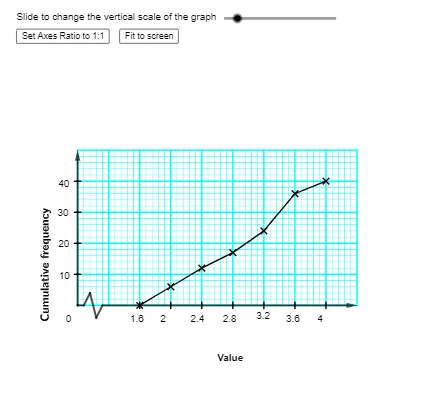
This example demonstrates how a cumulative frequency polygon (a connected polyline) turns grouped data into an interpretable graph showing the running total of frequency (or cumulative frequency/relative cumulative frequency). It highlights how adjacent class intervals contribute to the overall shape and how to read the trend from the constructed polygon. Key concepts include grouped statistics, cumulative frequency, class boundaries, class width, and the mapping from a frequency table to a plotted sequence of cumulative points. Construction in GeoGebra relies on Sequence to generate the indexing/interval endpoints, Segment/Vector/Corner to establish geometric positions, PolyLine to connect cumulative points into the polygonal line, Point to place endpoints and cumulative markers, and Textfield for annotations. Conditional logic via If is used to handle boundary cases (selecting start/end contributions). The construction uses computed objects such as classwidth, lower/upper class limits, and cumulative frequency variables (e.g., cf1–cf8, cfreq), along with coordinate scaling parameters (x/ y scales) to place everything correctly. Suitable for secondary and early undergraduate statistics lessons and for classroom exploration of cumulative distribution visualization.
GeoGebra Commands & Parameters
Sequence(Segment[(xlower, i), (xupper, i)], i, ylower, yupper, ysscale) → yminorSequence(Segment[(xlower, i), (xupper, i)], i, ylower, yupper, ylscale) → ymajorSequence(Segment[(i, ylower), (i, yupper)], i, xlower, xupper, xsscale) → xminorSegment(O, (x(O) + xsscale, y(O))) → sec1Segment((x(O) + xsscale, y(O)), (x(O) + (2 * xsscale), y(O) + (2 * ysscale))) → sec2Segment((x(O) + (2 * xsscale), y(O) + (2 * ysscale)), (x(O) + (3 * xsscale), y(O) + (-2 * ysscale))) → sec3Segment((x(O) + (3 * xsscale), y(O) - (2 * ysscale)), (x(O) + (4 * xsscale), y(O))) → sec4Vector(O, Y_e) → yaxiVector(X_0, X_e) → xaxiCorner(2, 1) → ZSequence((lowerclasslimit + ((i - 1) * classwidth), cfreq(i)), i, 1, n) → cfscatterPolyLine(cfscatter) → cfplotPoint(Segment[(x(O), ylower), (x(O), Max[Take[cfreq, 1, n]])]) → PPolyLine(P, (x(P_1), y(P)), P_1) → pPoint(Segment[(lowerclasslimit, ylower), (lowerclasslimit + ((n - 1) * classwidth), ylower)]) → QPolyLine(Q, (x(Q), y(Q_1)), Q_1) → qSequence(Segment[(x(O) - xsscale / 2, (i * ylscale)), (x(O) + xsscale / 2, (i * ylscale))], i, 1, Div[yupper, ylscale] - 1) → yintSequence(Segment[(x(C) + (4 * i), y(C)), (x(C) + (4 * i), y(C) - (n + 1))], i, 0, 2) → T2Sequence(Segment[(x(C), y(C) - i), (x(C) + 8, y(C) - i)], i, 0, n + 1) → T1Textfield(lowerclasslimit) → InputBox1Textfield(upperclasslimit) → InputBox2Textfield(cf2) → InputBox4Textfield(cf3) → InputBox5Textfield(cf4) → InputBox6Textfield(cf5) → InputBox7Textfield(cf6) → InputBox8Textfield(cf7) → InputBox9Textfield(cf8) → InputBox10Sequence(Segment[(lowerclasslimit + (i * classwidth), ylower + ysscale / 2), (lowerclasslimit + (i * classwidth), ylower - ysscale / 2)], i, 0, n - 1) → xintPolyLine(R, (x(R), y(R_1)), R_1) → rPoint(Segment[Q, (lowerclasslimit + ((n - 1) * classwidth), ylower)]) → EPolyLine(E, (x(E), y(E_1)), E_1) → eSequence(Segment[(i, ylower), (i, yupper)], i, xlower, xupper, xlscale) → xmajorPolyLine(S, (x(S_1), y(S)), S_1) → sPolyLine(T, (x(T_1), y(T)), T_1) → t_3PolyLine(U, (x(U_1), y(U)), U_1) → uIf(chi ≟ false, RotateText["Cumulative frequency", 90°], RotateText["累積頻數", 90°]) → text4
AI Drawing Prompt Reference
Draw a cumulative frequency polygon graph. The horizontal axis represents class boundaries (lower and upper class limits), and the vertical axis represents cumulative frequency. First, draw the coordinate axes and grid lines with major and minor ticks. Then, plot cumulative frequency points at each class boundary using given cumulative frequencies (e.g., cf1 to cf8), and connect these points with a polyline to form the polygon. Add auxiliary reference segments from the origin and text input boxes for class limits and cumulative frequencies. Finally, place a rotated 90-degree text label 'Cumulative frequency' along the vertical axis. The layout should clearly show the rising trend of cumulative frequency.
The prompt above was compiled from the original drawing commands and is for reference only.