
Interactive Unit Circle Demo
Loading the math board and drawing, please wait…
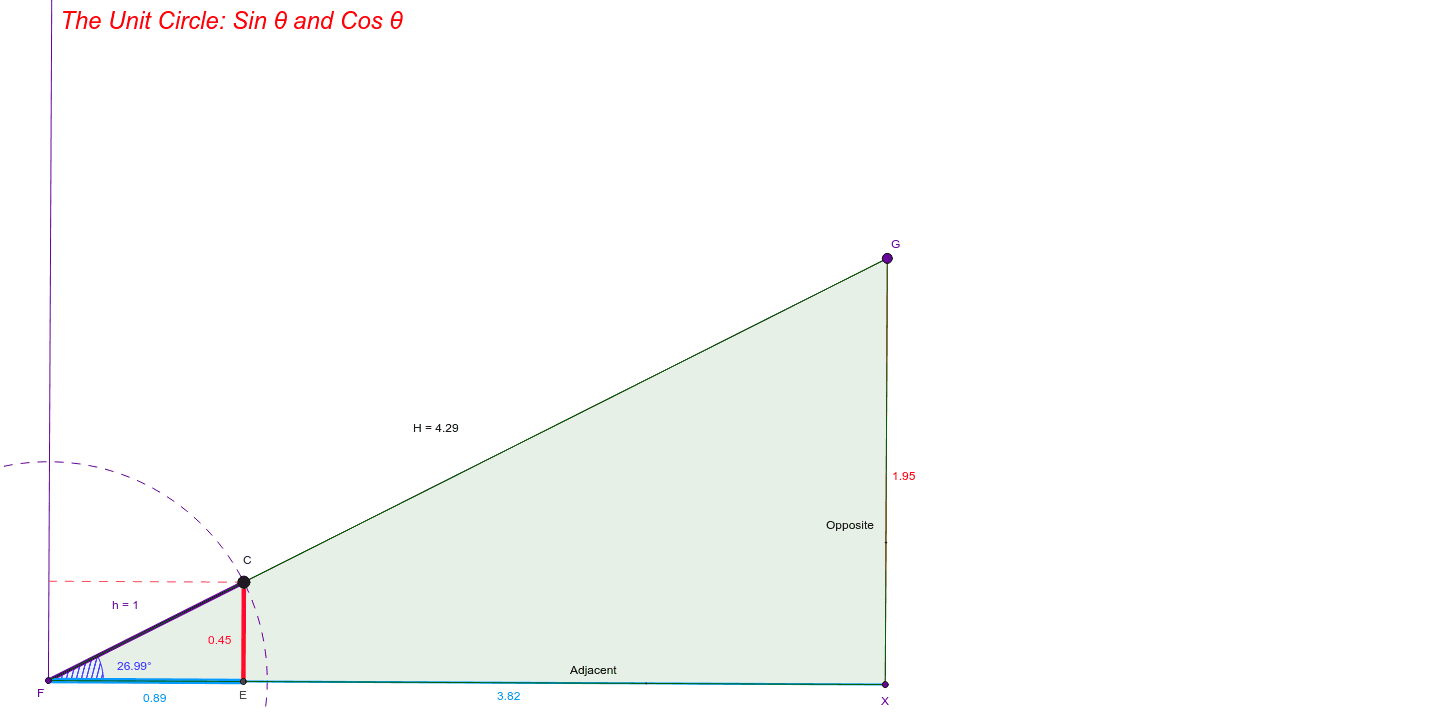
This example demonstrates the relationship between trigonometric functions and coordinate geometry through an interactive unit circle. It involves core math concepts like the unit circle, trigonometric values, and the correspondence between angles and coordinates. Construction uses commands such as Point, Segment, Ray, OrthogonalLine, Line, Circle, Intersect, Angle, Polygon in GeoGebra. Suitable for high school students learning trigonometry and analytical geometry.
GeoGebra Commands & Parameters
Point(Circle[A, 1]) → CSegment(A, C) → hRay(A, D) → aOrthogonalLine(A, a) → bLine(C, a) → cLine(C, b) → dCircle(A, C) → eIntersect(c, b) → EIntersect(b, h) → FSegment(F, E) → fSegment(C, E) → gAngle(E, F, C) → αLine(F, C) → iPoint(i) → GLine(G, a) → jIntersect(j, b) → XSegment(C, E) → kSegment(E, F) → lSegment(F, G) → HSegment(F, X) → nSegment(G, X) → pIntersect(d, a) → ISegment(C, I) → qPolygon(F, G, X) → poly1, J, f_1, g_1Point(poly1) → KPoint(poly1) → L
AI Drawing Prompt Reference
Draw a unit circle and mark a point on it. Connect the point to the center to form a line segment. Draw a ray from the center and a perpendicular line. From the intersection of the circle and the ray, draw a line that intersects the perpendicular line at a point. Connect this point to the center and draw another line from the intersection of the circle and the perpendicular line. Connect the two intersection points and draw a line parallel to the ray that intersects the perpendicular line at another point. Finally, connect the three intersection points to form a triangle and display the angles and segments.
The prompt above was compiled from the original drawing commands and is for reference only.