
Interactive Surface Area of a Cuboid
Loading the math board and drawing, please wait…
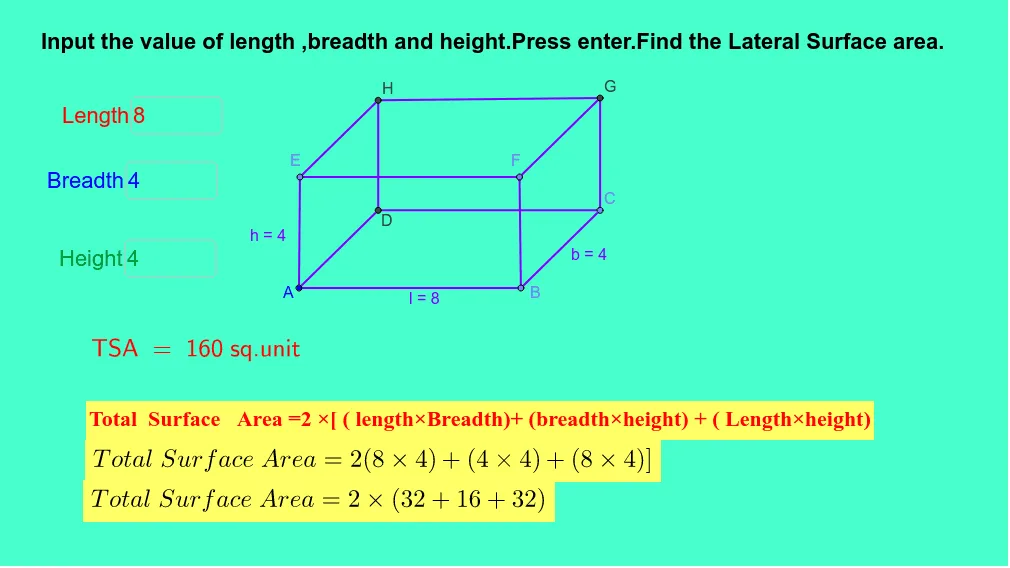
① This GeoGebra example demonstrates the surface area of a cuboid (rectangular prism) interactively, allowing users to input length, width, and height values and observe the areas of individual faces and the total surface area update in real time. ② Core mathematical concepts include solid geometry, rectangular faces, area calculation, lateral surface area, and total surface area decomposition. ③ Construction details: Based on the construction summary, the example uses commands such as Textfield, Point, Segment, Line, Intersect, and OrthogonalLine, creating objects like l_1, h_1, b_2, multiple input boxes (inputBox1, inputBox2, etc.), and text objects (text2). Variables lb, bh, and lh represent the areas of the three distinct faces, which are summed to obtain the total surface area. ④ This resource is suitable for middle or high school students learning introductory solid geometry, as well as for teachers to illustrate the formula for the surface area of a cuboid, enhancing spatial reasoning and conceptual understanding.
GeoGebra Commands & Parameters
Textfield(l_1) → inputBox1Textfield(b_2) → inputBox2Textfield(h_1) → inputBox3Textfield(l_1) → inputBox1_1Textfield(b_2) → inputBox2_1Textfield(h_1) → inputBox3_1Textfield(l_1) → inputBox1_2Textfield(b_2) → inputBox2_2Textfield(h_1) → inputBox3_2Textfield(l_1) → inputBox1_3Textfield(b_2) → inputBox2_3Textfield(h_1) → inputBox3_3Point(Circle[A, abs(l_1)]) → BSegment(A, B) → lPoint(Circle[B, abs(b_2)]) → CSegment(B, C) → bLine(C, l) → dLine(A, b) → eIntersect(e, d) → DSegment(D, C) → fSegment(D, A) → gOrthogonalLine(A, l) → iOrthogonalLine(B, l) → jOrthogonalLine(D, f) → kOrthogonalLine(C, f) → mPoint(Circle[A, abs(h_1)]) → ESegment(A, E) → hPoint(Circle[B, abs(h_1)]) → FSegment(B, F) → pLine(E, g) → qLine(E, l) → rLine(F, b) → sIntersect(m, s) → GIntersect(q, k) → HSegment(H, G) → tSegment(F, G) → a_1Segment(E, H) → b_1Segment(C, G) → c_1Segment(H, D) → d_1Segment(E, F) → e_1Textfield(l_1) → inputBox1_4Textfield(b_2) → inputBox2_4Textfield(h_1) → inputBox3_4Textfield(l_1) → inputBox1_5Textfield(b_2) → inputBox2_5Textfield(h_1) → inputBox3_5Textfield(l_1) → inputBox1_6Textfield(b_2) → inputBox2_6Textfield(h_1) → inputBox3_6Textfield(l_1) → inputBox1_7Textfield(b_2) → inputBox2_7Textfield(h_1) → inputBox3_7Point(Circle[A_1, abs(l_1)]) → B_1Segment(A_1, B_1) → l_2Point(Circle[B_1, abs(b_2)]) → C_1Segment(B_1, C_1) → b_3Line(C_1, l_2) → d_2Line(A_1, b_3) → e_2OrthogonalLine(A_1, l_2) → i_1OrthogonalLine(B_1, l_2) → j_1Point(Circle[A_1, abs(h_1)]) → E_1Segment(A_1, E_1) → h_2Line(E_1, l_2) → r_1Textfield(l_1) → inputBox1_8Textfield(b_2) → inputBox2_8Textfield(h_1) → inputBox3_8Textfield(l_1) → inputBox1_9Textfield(b_2) → inputBox2_9Textfield(h_1) → inputBox3_9Textfield(l_1) → inputBox1_{10}Textfield(b_2) → inputBox2_{10}Textfield(h_1) → inputBox3_{10}Textfield(l_1) → inputBox1_{11}Textfield(b_2) → inputBox2_{11}Textfield(h_1) → inputBox3_{11}Point(Circle[A_2, abs(l_1)]) → B_2Segment(A_2, B_2) → l_3Point(Circle[B_2, abs(b_2)]) → C_2Segment(B_2, C_2) → b_4Line(C_2, l_3) → d_3Line(A_2, b_4) → e_3OrthogonalLine(A_2, l_3) → i_2OrthogonalLine(B_2, l_3) → j_2Point(Circle[A_2, abs(h_1)]) → E_2Segment(A_2, E_2) → h_3Line(E_2, l_3) → r_2Textfield(l_1) → inputBox1_{12}Textfield(b_2) → inputBox2_{12}Textfield(h_1) → inputBox3_{12}Textfield(l_1) → inputBox1_{13}Textfield(b_2) → inputBox2_{13}Textfield(h_1) → inputBox3_{13}Textfield(l_1) → inputBox1_{14}Textfield(b_2) → inputBox2_{14}Textfield(h_1) → inputBox3_{14}Textfield(l_1) → inputBox1_{15}Textfield(b_2) → inputBox2_{15}Textfield(h_1) → inputBox3_{15}Textfield(l_1) → inputBox1_{16}Textfield(b_2) → inputBox2_{16}Textfield(h_1) → inputBox3_{16}Textfield(l_1) → inputBox1_{17}Textfield(b_2) → inputBox2_{17}Textfield(h_1) → inputBox3_{17}Textfield(l_1) → inputBox1_{18}Textfield(b_2) → inputBox2_{18}Textfield(h_1) → inputBox3_{18}Textfield(l_1) → inputBox1_{19}Textfield(b_2) → inputBox2_{19}Textfield(h_1) → inputBox3_{19}Point(Circle[A_3, abs(l_1)]) → B_3Segment(A_3, B_3) → l_4Point(Circle[B_3, abs(b_2)]) → C_3Segment(B_3, C_3) → b_5Line(C_3, l_4) → d_4Line(A_3, b_5) → e_4OrthogonalLine(A_3, l_4) → i_3OrthogonalLine(B_3, l_4) → j_3Point(Circle[A_3, abs(h_1)]) → E_3Segment(A_3, E_3) → h_4Line(E_3, l_4) → r_3Textfield(l_1) → inputBox1_{20}Textfield(b_2) → inputBox2_{20}Textfield(h_1) → inputBox3_{20}Textfield(l_1) → inputBox1_{21}Textfield(b_2) → inputBox2_{21}Textfield(h_1) → inputBox3_{21}Textfield(l_1) → inputBox1_{22}Textfield(b_2) → inputBox2_{22}Textfield(h_1) → inputBox3_{22}Textfield(l_1) → inputBox1_{23}Textfield(b_2) → inputBox2_{23}Textfield(h_1) → inputBox3_{23}Textfield(l_1) → inputBox1_{24}Textfield(b_2) → inputBox2_{24}Textfield(h_1) → inputBox3_{24}Textfield(l_1) → inputBox1_{25}Textfield(b_2) → inputBox2_{25}Textfield(h_1) → inputBox3_{25}Textfield(l_1) → inputBox1_{26}Textfield(b_2) → inputBox2_{26}Textfield(h_1) → inputBox3_{26}Textfield(l_1) → inputBox1_{27}Textfield(b_2) → inputBox2_{27}Textfield(h_1) → inputBox3_{27}Textfield(l_1) → inputBox1_{28}Textfield(b_2) → inputBox2_{28}Textfield(h_1) → inputBox3_{28}Textfield(l_1) → inputBox1_{29}Textfield(b_2) → inputBox2_{29}Textfield(h_1) → inputBox3_{29}Textfield(l_1) → inputBox1_{30}Textfield(b_2) → inputBox2_{30}Textfield(h_1) → inputBox3_{30}Textfield(l_1) → inputBox1_{31}Textfield(b_2) → inputBox2_{31}Textfield(h_1) → inputBox3_{31}
AI Drawing Prompt Reference
Create an interactive cuboid surface area diagram. Start with a base rectangle whose length, width, and height are controlled by three input boxes. From each base vertex, draw vertical edges upward to form the top rectangle, and connect all edges. Use distinct colors or transparency for the six faces, labeling each face's area (length×width, width×height, length×height) and showing the total surface area formula nearby. The figure should update in real time as input values change, with face areas and total area updating accordingly.
The prompt above was compiled from the original drawing commands and is for reference only.