
Interactive Multiples Jump Circle Game
Loading the math board and drawing, please wait…
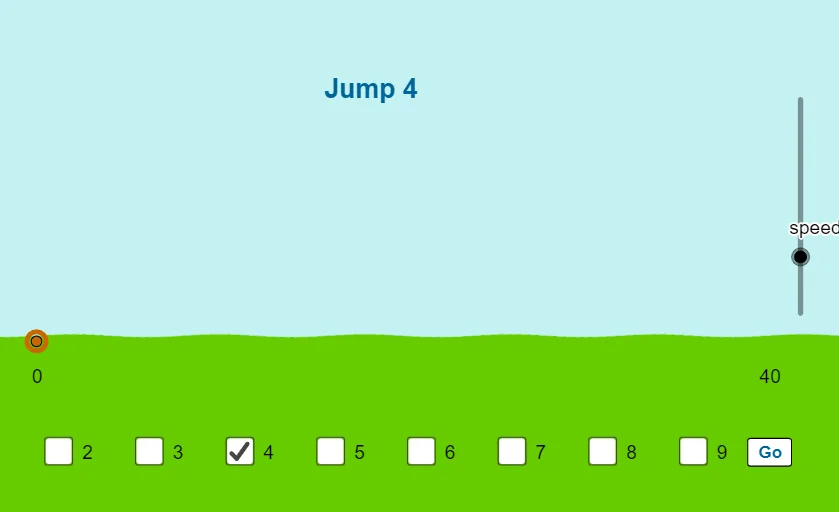
This GeoGebra example demonstrates an interactive game where a ball dynamically jumps between target circles based on multiples, providing a visual and engaging way to learn arithmetic sequences. The core mathematical concepts covered include multiples, arithmetic sequences, and basic probability/random experiments, showing how numbers align on a visual grid. To construct this, the tool utilizes commands like Sequence, CurveCartesian, Point, and RandomElement, alongside custom objects such as ball (the jumping sphere), ballc and xcirc (the target circles), interactive buttons (button1 through button4), and dynamic text fields (text1 to text5) to manage user inputs and display scores or instructions. It is highly suitable for elementary and middle school students, teachers looking for interactive classroom games, or anyone wanting to visualize arithmetic patterns and skip counting in a playful, geometric format.
GeoGebra Commands & Parameters
Corner(5) → dimsSequence(0, (10 * mM), mM) → l1CurveCartesian((mM / ((2 * π)) * (t - sin(t))), (mM / ((2 * π)) * (1 - cos(t))), t, 0, ((semitimer * 2) * π / mM)) → ballcPoint(ballc, semitimer) → ballSequence((n, 0), n, 0, semitimer, 1) → l2Sequence((n, 0), n, 0, semitimer, mM) → l3RandomElement(Remove[l1, {0, (10 * mM)}]) → rancirSequence(Text[Element[l1, n], (Element[l1, n] - (0.05 * mM), (-0.1 * top))], n, 1, (semitimer + mM) / mM) → l4RandomElement(Remove[l1, {0, rancir, (10 * mM)}]) → rancir2
AI Drawing Prompt Reference
Draw a horizontal number line with ten equally spaced circles centered at successive multiples, each labeled with its value. Above the line, sketch a cycloidal arc and place a small ball that can slide along it. Randomly highlight two distinct circles as jump targets. Add four interactive buttons and several dynamic text fields for score and instructions on the side of the canvas.
The prompt above was compiled from the original drawing commands and is for reference only.