
Exploring Graph Types with Slider-Controlled Functions and Curves
Loading the math board and drawing, please wait…
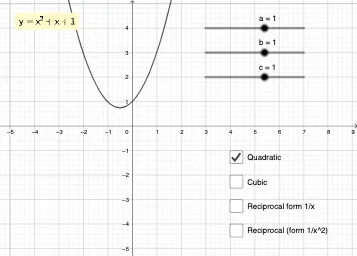
This GeoGebra example lets learners manipulate sliders and checkboxes to dynamically switch between multiple graph types, revealing how visual features change when underlying parameters vary. It supports intuition-building for function graphing, especially quadratic functions (parabola behavior driven by coefficients), and connects linear ideas such as secant lines to the idea of using chords/lines to probe function behavior. The setup also incorporates elements related to probability & statistics, such as standard deviation, to show how spread measures affect the displayed structure. Construction-wise, it relies on GeoGebra’s ‘LaTeX’ for formatted mathematical labels and ‘If’ for conditional branching so different expressions/graphics appear depending on selected options. The model uses many parameter and display objects (e_1, e_2, a–m, h, text0–text4) plus helper/intermediate entities (c_1, sym, p, Op) to organize the logic and annotated results. Suitable for secondary education through early undergraduate courses, classroom demonstrations, and interactive self-study on graph interpretation and parameter effects.
GeoGebra Commands & Parameters
LaTeX(g, true, false) → text3If(e_2 ≟ 0, "", e_2) → c_1LaTeX(p, true, false) → text2LaTeX(h, true, false) → text1LaTeX(f, true, false) → text4
AI Drawing Prompt Reference
Create an interactive graphing panel with sliders and checkboxes to switch between function types. Show a parabola whose shape changes with coefficient sliders, and include a secant line crossing the curve at two points with its slope labeled. Add a visual band representing standard deviation to illustrate data spread. Display all mathematical expressions in clean typeset that updates dynamically. Keep the layout clear for classroom use, emphasizing how parameter changes affect the graph.
The prompt above was compiled from the original drawing commands and is for reference only.