
Evaluating Fractions Raised to a Power
Loading the math board and drawing, please wait…
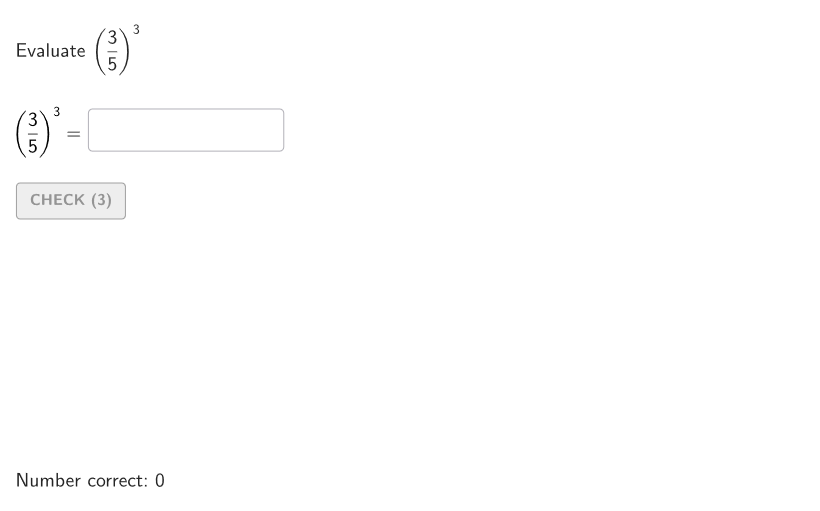
This example demonstrates the process of evaluating fractions raised to a power, involving the concepts of fractions and exponents. Using GeoGebra commands such as TextToUnicode and Textfield, the steps of fraction power evaluation are dynamically displayed. Suitable for 6-8 grade students for practice and learning.
GeoGebra Commands & Parameters
TextToUnicode("0123456789") → allDigitsTextfield(input1) → InputBox1RemoveUndefined(Zip[If[Defined[IndexOf[A, allDigits]], A], A, studUni]) → studentDigitsShuffle(1…5) → allNum, {3, 5, 2, 1, 4}Element(allNum, Mod[countQuestion, Length[allNum]] + 1) → valNumKeepIf(GCD[valNum, a] ≟ 1, a, {2, 3, 4, 5, 6}) → dummyDenShuffle(dummyDen) → allDen, {5, 4, 2}Element(allDen, Mod[countQuestion, Length[allDen]] + 1) → valDenShuffle({2, 3, 4}) → allExpon, {3, 4, 2}Element(allExpon, Mod[countQuestion, Length[allExpon]] + 1) → valExponAreEqual(InputBox1, givenAns) → correctValDefined(IndexOf[Sort[studentDigits], expectedDigits]) → correctDigitsPolygon(Zip[PixelsToPoint[Corner[1], Corner[3], Corner[5], A], A, {(pixelsLeft, pixelsTop), (pixelsLeft, y(Corner[5]) - pixelsBottom), Corner[5] - (pixelsRight, pixelsBottom), (x(Corner[5]) - pixelsRight, pixelsTop)}]) → borderBoxCorner(5) → layoutAppSize
AI Drawing Prompt Reference
Draw a rectangle with a fraction expression inside, such as 1/2 squared. Add an input box around the rectangle for the answer. Connect the fraction expression and input box with a line. The construction order is to draw the rectangle first, then add the fraction expression, then the input box, and finally connect them.
The prompt above was compiled from the original drawing commands and is for reference only.