
Cycloidal Pendulum: Parametric Curve and Motion Analysis
Loading the math board and drawing, please wait…
In collections
The Domain of the Time (intuitive kinematics)
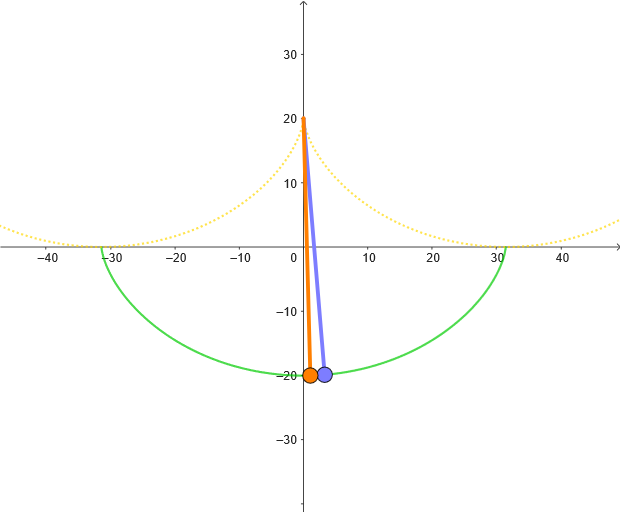
This example demonstrates the cycloidal pendulum, a parametric curve representing the path of a pendulum's bob. It involves concepts like parametric equations, curve properties, and kinematics. Construction uses GeoGebra commands such as CurveCartesian, Point, Tangent, and UnitVector to create the curve and analyze its geometric features. Suitable for high school students or college undergraduates to explore the intersection of geometry and physics.
GeoGebra Commands & Parameters
CurveCartesian((((α - pi) * r), (-r)) + (r; α + pi / 2), α, 0, (2 * pi)) → cPoint(c) → MTangent(M, c) → iUnitVector(i) → nCurveCartesian(((α * r), r) + (r; α + pi / 2), α, (-2 * pi), (2 * pi)) → c1CurveCartesian(((α * r), r) + (r; α + pi / 2), α, (-pi), pi) → c2Point(c2, PathParameter[M]) → PMCurveCartesian(((α * r), r) + (r; α + pi / 2), α, 0, ((2 * pi) * (PathParameter[M] - 0.5))) → m2CurveCartesian(((α * r), r) + (r; α + pi / 2), α, ((2 * pi) * (PathParameter[M] - 0.5)), 0) → m1Segment(PM, M) → jOrthogonalLine(M, i) → hPoint(c) → ATangent(A, c) → iAUnitVector(iA) → nACurveCartesian(((α * r), r) + (r; α + pi / 2), α, ((2 * pi) * (PathParameter[A] - 0.5)), 0) → a1CurveCartesian(((α * r), r) + (r; α + pi / 2), α, 0, ((2 * pi) * (PathParameter[A] - 0.5))) → a2Point(c2, PathParameter[A]) → PASegment(PA, A) → fOsculatingCircle(M, c) → d
AI Drawing Prompt Reference
Draw a cycloidal-pendulum setup by constructing parametric curves that represent the bob’s path, using two related curve segments with parameter ranges from negative to positive values. Choose a point on the first curve as the main bob position. At that point, construct the tangent direction to the curve and derive the unit normal (from the tangent) for local geometric analysis. Also pick a corresponding point on the second curve using the same path parameter and connect it to the main point with a segment to illustrate the motion linkage. Then select another point on the main curve, again draw its tangent and unit normal, and use the local geometry to draw auxiliary lines. Finally, draw the osculating circle at the main point to show the curve’s curvature there.
The prompt above was compiled from the original drawing commands and is for reference only.