
Constructing Quadratic Equations via Conic Intersections
Loading the math board and drawing, please wait…
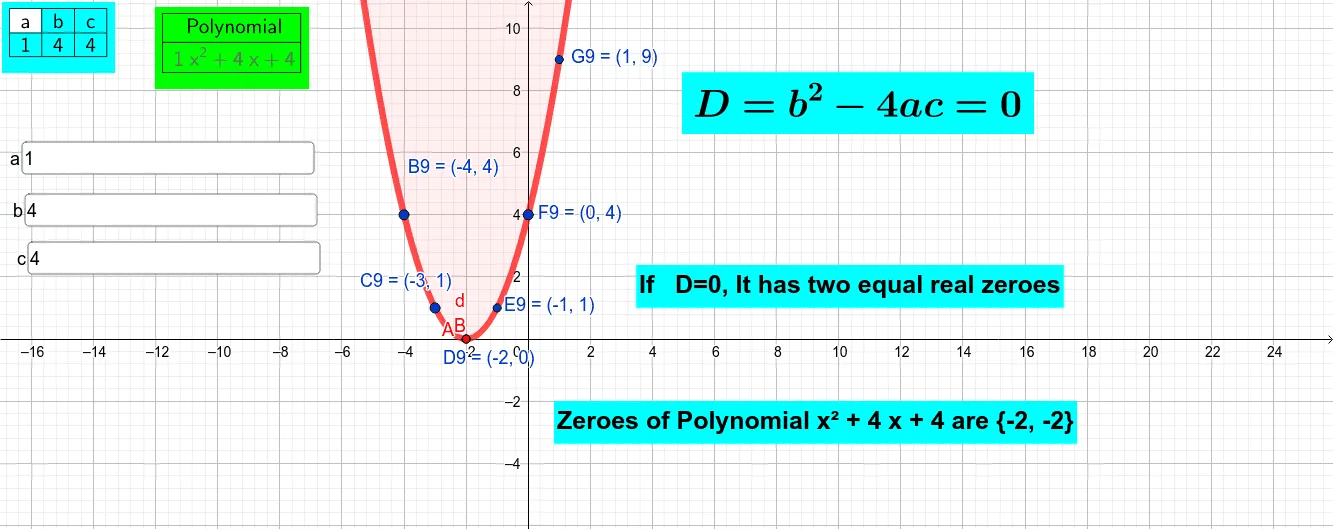
This example demonstrates how a quadratic-equation problem can be visualized and solved geometrically by constructing a conic (e.g., an ellipse or general quadratic curve) and using its intersection points with other curves/constraints. The key mathematical ideas are quadratic equations, conic sections, and solving by computing intersection points. In GeoGebra, the construction is driven by Textfield and InputBox1/InputBox2/InputBox3 to define and display parameters or equation components, Conic to create the relevant second-degree curves (objects corresponding to the built conics such as a, b, c, f), Intersect to obtain and locate their intersection points (e.g., objects like J4–J7 and related intersection results), and TableText to organize and report computed values. The result is a clear algebra-to-geometry link, suitable for high school and early undergraduate students studying coordinate geometry and equation visualization.
GeoGebra Commands & Parameters
Textfield(a) → InputBox1Textfield(b) → InputBox2Textfield(c) → InputBox3TableText({{A1, B1, C1}, {A2, B2, C2}}, "|_ccc") → text1TableText({{D1}, {D2}}, "|_c") → text2Conic(H9, I9, J9, G9, F9) → dIntersect(d, y = 0) → A, B
AI Drawing Prompt Reference
Draw a conic section and adjust its shape by changing the coefficients a, b, and c in the input boxes. Use the Conic command to create the conic d, and then find its intersection points A and B with the x-axis.
The prompt above was compiled from the original drawing commands and is for reference only.