
Carrier Landing Simulation
Loading the math board and drawing, please wait…
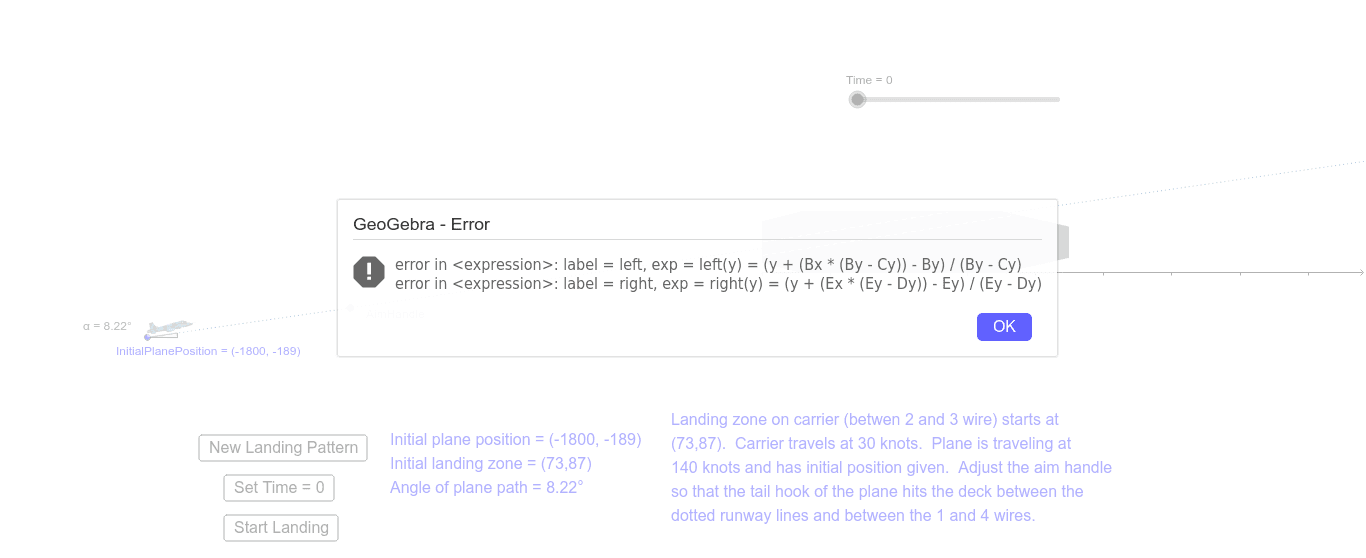
This example simulates an airplane landing on an aircraft carrier, demonstrating the application of vectors and trigonometry. Students can adjust the initial positions and speeds of the plane and carrier to observe their relative motion. Commands such as Line, Circle, Point, Ray, Angle, and Polygon are used for construction. Suitable for high school mathematics education, particularly for learning analytic geometry and trigonometry.
GeoGebra Commands & Parameters
Line(InitialPlanePosition, xAxis) → aCircle(InitialPlanePosition, 600) → cPoint(c) → AimHandleRay(InitialPlanePosition, AimHandle) → bPoint(a) → AAngle(A, InitialPlanePosition, AimHandle) → αPolygon(C1, D1, E1, B1) → LZ, c1, d1, e1, b1
AI Drawing Prompt Reference
Draw a carrier landing simulation: place an initial airplane position on a horizontal axis, draw a circle of radius 600 centered at that point, and put a draggable aim point on the circle. From the airplane position, draw a ray toward the aim point to indicate the flight direction. Mark another point on the horizontal axis as the current airplane location, and measure the angle formed by this point, the initial position, and the aim point. Finally, construct a quadrilateral to represent the carrier deck, labeling its four vertices. Show the relative motion between the airplane and carrier for adjusting parameters and observing angle changes.
The prompt above was compiled from the original drawing commands and is for reference only.