
Area Comparison
Loading the math board and drawing, please wait…
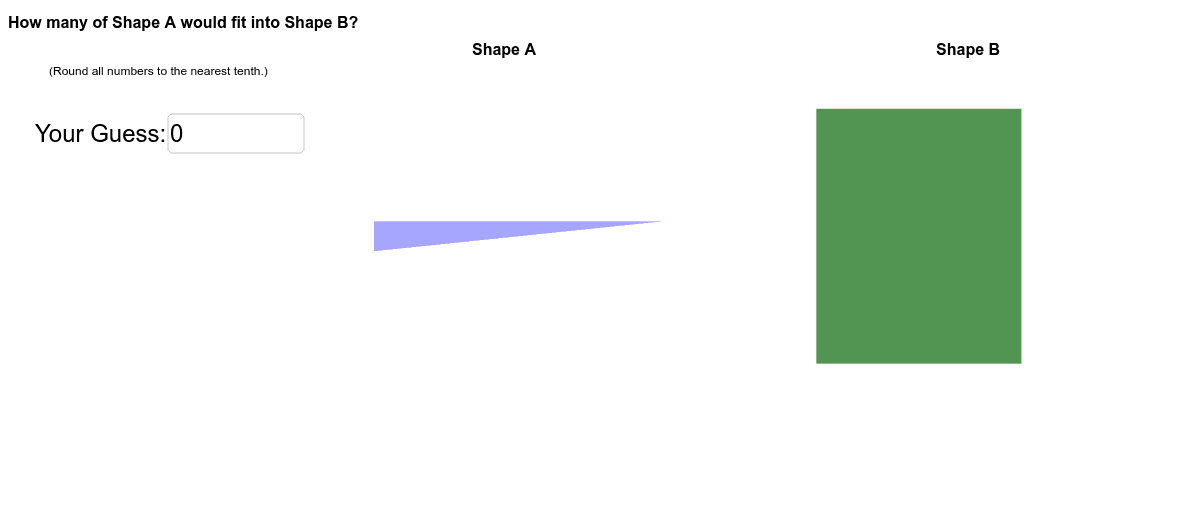
This example demonstrates how to use GeoGebra to compare the areas of different shapes, such as circles and triangles. Core math concepts include area calculation, coordinate geometry, random number generation, and conditional statements. Key GeoGebra commands/objects used are Polygon, Random, If, Textfield, and Segment for constructing and analyzing geometric figures. Suitable for middle school and above students to learn and understand area calculation and comparison, ideal for math instruction and exploratory learning.
GeoGebra Commands & Parameters
Polygon(I, J, K, L) → poly7, i, j, k, lRandom(1, 2) → type2Polygon(E, F, G, H) → poly2, e, f, g, hRandom(1, 2) → type1If(abs(guess1 - correct) / correct < 1, abs(guess1 - correct) / correct, 1) → error1Polygon(B, C, D, A) → poly1, b, c, d, aRandom(1, 4) → missingARandom(1, 4) → missingBPolygon(B_1, C_1, D_1, A_1) → poly1_1, b_1, c_1, d_1, a_1Polygon(F, G, H) → poly3, h_1, f_1, g_1Polygon(E, G, H) → poly4, h_2, e_1, g_2Polygon(E, F, G) → poly5, g_3, e_2, f_2Polygon(E, F, H) → poly6, h_3, e_3, f_3Polygon(J, K, L) → poly8, l_1, j_1, k_1Polygon(I, K, L) → poly9, l_2, i_1, k_2Polygon(I, J, L) → poly10, l_3, i_2, j_2Polygon(I, J, K) → poly11, k_3, i_3, j_3Textfield(guess1) → inputBox1Segment(Q, R) → mSegment(R, S) → nSegment(R, T) → p
AI Drawing Prompt Reference
Draw geometric shapes to compare areas, including circles and triangles. Use random numbers to generate different shapes and calculate their areas via coordinate geometry. Add sliders and text boxes to display area calculation results and error comparisons. Start by constructing basic polygons, then create various combinations of triangles and quadrilaterals, finally connecting key points with lines to form the figures.
The prompt above was compiled from the original drawing commands and is for reference only.