
Adjusting the Scale Factor of a Dilation
Loading the math board and drawing, please wait…
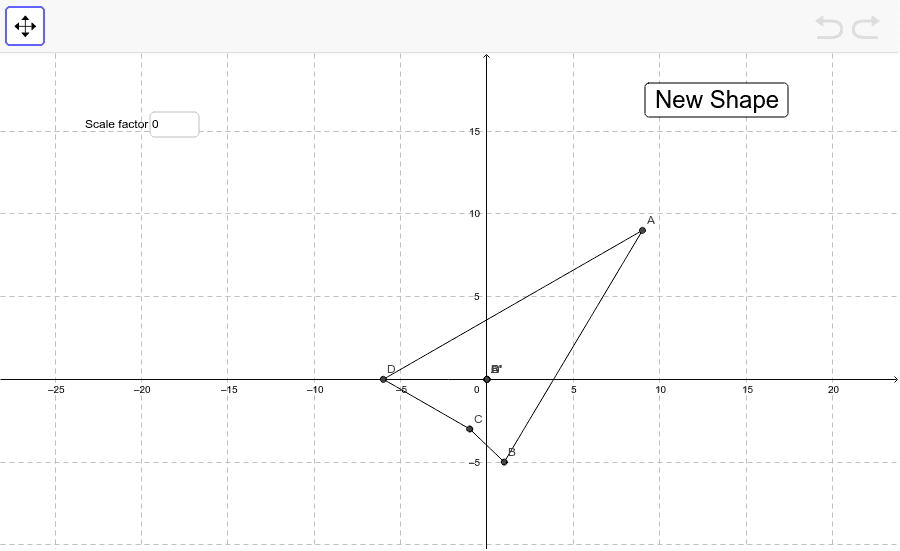
This example demonstrates how to change the size of a figure by adjusting the scale factor of a dilation. Key math concepts include transformation, similarity, and proportional relationships. Construction highlights the use of GeoGebra commands like Segment, Textfield, and objects A, B, C, D, a, b, c, d, scale, inputBox1, A', B', C', D', e, f, g, h, and button1. Suitable for middle school and above students to learn the properties and applications of geometric transformations.
GeoGebra Commands & Parameters
Segment(A, B) → aSegment(B, C) → bSegment(C, D) → cSegment(D, A) → dTextfield(scale) → inputBox1Segment(A', B') → eSegment(B', C') → fSegment(C', D') → gSegment(D', A') → h
AI Drawing Prompt Reference
Draw a square shape made of four line segments. The segments A, B, C, and D connect the four vertices to form a closed shape. Add a text box to input the scale factor. Then draw four new line segments A', B', C', and D' connecting the corresponding vertices to form a larger square. Ensure the new segments are parallel and evenly spaced from the original ones. Finally, add a button to indicate the scaling operation.
The prompt above was compiled from the original drawing commands and is for reference only.