
Trapezium Area Calculation Practice
Loading the math board and drawing, please wait…
In collections
Area of shapes
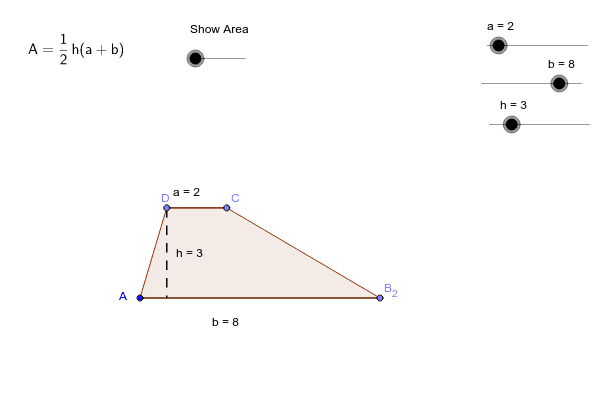
This example demonstrates how to draw a trapezium and calculate its area using GeoGebra. The core math concepts involved include the area formula of a trapezium, geometric construction, and equation application. Key construction steps involve using commands like Line, OrthogonalLine, Point, Segment, Circle, Intersect, Polygon, and If to build the trapezium and related elements, with dynamic parameter adjustment via sliders. Suitable for middle school and above students for geometry learning and practice.
GeoGebra Commands & Parameters
Line(A, B_1) → a_2OrthogonalLine(A, a_2) → b_1Point(Circle[A, b]) → B_2Segment(A, B_2) → cCircle(A, h) → dIntersect(d, b_1, 1) → D_1Line(D_1, a_2) → h_1Point(h_1) → DPoint(Circle[D, a]) → CSegment(D, C) → iPolygon(D, A, B_2, C) → P, e_1, a_1, c_1, f_1OrthogonalLine(D, a_2) → jOrthogonalLine(D, c) → lIntersect(l, c) → HSegment(D, H) → kPoint(k) → GPoint(i) → IPoint(c) → JIf(b ≟ a, T4) → T5If(e ≟ 1, E) → FPoint(i) → BPoint(c) → K
AI Drawing Prompt Reference
Draw a trapezium and calculate its area. Start by drawing two parallel lines and marking points on them. Use circles and intersections to determine the trapezium's vertices, then connect them to form the shape. Draw perpendicular lines from the vertices to the parallel lines to mark the feet of the perpendiculars. Finally, calculate and display the area based on the trapezium's height and base lengths. Use sliders to dynamically adjust parameters, demonstrating geometric construction and equation application.
The prompt above was compiled from the original drawing commands and is for reference only.