
Square Tiles Around a Rectangular Pool: Writing Algebraic Expressions
Loading the math board and drawing, please wait…
In collections
CBSE Class VI Maths
Expressions and equations
Expressions and equations
Expressions and equations
Expressions and equations
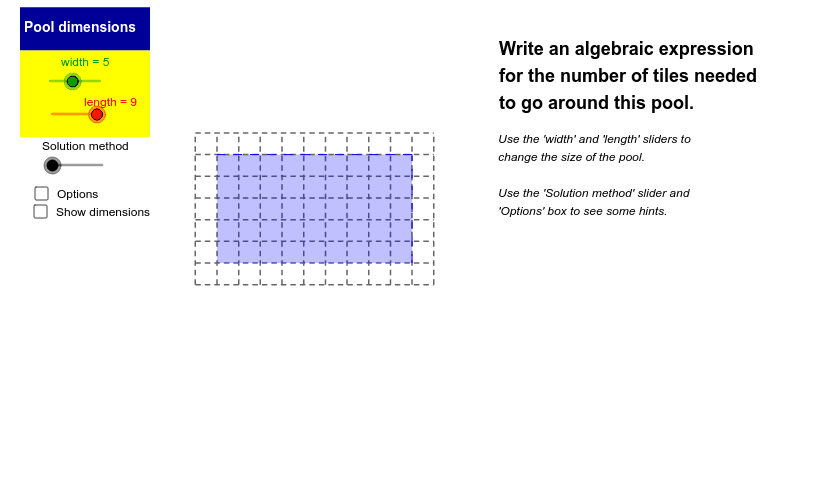
This GeoGebra example demonstrates square tiles placed around a blue rectangular pool and guides users to derive an algebraic expression for the total number of tiles required. Core mathematical concepts include algebraic modeling, the relationship between rectangular dimensions and perimeter-based counting, discrete-to-continuous geometric reasoning, and the use of variables to represent length and width. Construction highlights, drawn from the command summary, involve the Polygon command to create the pool polygon PoolPolygon and tile regions, the Sequence command to generate horizontal lines horizontallines and vertical lines verticallines, and the Midpoint command to locate key points; objects such as vertices A, B, C, D, parameters width and length, and auxiliary polygons Method1PolyA, Method1PolyB, Method1PolyC are used to structure the visualization. The resource is suitable for middle school algebra-geometry integration lessons and high school modeling introductions, helping teachers and students abstract a general formula from a concrete tiling pattern.
GeoGebra Commands & Parameters
Polygon(A, B, C, D) → PoolPolygon, a_1, b_1, c, dSequence(Segment[(x(E), y(E) + a * i), (x(E) + (length + 2.0) * a, y(E) + a * i)], i, 0.0, width + 2.0) → horizontallinesSequence(Segment[(x(E) + a * i, y(E)), (x(E) + a * i, y(E) + (width + 2.0) * a)], i, 0.0, length + 2.0) → verticallinesPolygon(E, I, A, P) → Method1PolyA, e, i, a_2, pPolygon(I, J, B, A) → Method1PolyB, i_1, j, b, a_3Polygon(J, F, K, B) → Method1PolyC, j_1, f, k, b_2Polygon(B, K, L, C) → Method1PolyD, b_3, k_1, l, c_1Polygon(C, L, G, M) → Method1PolyE, c_2, l_1, g, mPolygon(D, C, M, N) → Method1PolyF, d_1, c_3, m_1, nPolygon(O, D, N, H) → Method1PolyG, o, d_2, n_1, hPolygon(P, A, D, O) → Method1PolyH, p_1, a_4, d_3, o_1Polygon(E, F, K, P) → Method2PolyA, e_1, f_1, k_2, p_2Polygon(O, L, G, H) → Method2PolyB, o_2, l_2, g_1, h_1Polygon(P, A, D, O) → Method2PolyC, p_3, a_5, d_4, o_3Polygon(B, K, L, C) → Method2PolyD, b_4, k_3, l_3, c_4Polygon(E, J, B, P) → Method3PolyA, e_2, j_2, b_5, p_4Polygon(J, F, L, C) → Method3PolyB, j_3, f_2, l_4, c_5Polygon(D, L, G, N) → Method3PolyC, d_5, l_5, g_2, n_2Polygon(P, A, N, H) → Method3PolyD, p_5, a_6, n_3, h_2Polygon(O, L, G, H) → Method4PolyA, o_4, l_6, g_3, h_3Polygon(E, I, D, O) → Method4PolyB, e_3, i_2, d_6, o_5Polygon(J, F, L, C) → Method4PolyC, j_4, f_3, l_7, c_6Polygon(I, J, B, A) → Method4PolyD, i_3, j_5, b_6, a_7Polygon(U, V, W, Z) → poly1, u, v, w, zPolygon(V, A_1, B_1, W) → poly2, v_1, a_8, b_7, w_1Midpoint(a_1) → C_1Midpoint(d) → D_1
AI Drawing Prompt Reference
Draw a blue rectangular pool and surround it with square tiles. First, draw the pool's rectangular boundary, then generate tile areas using horizontal and vertical lines. Next, create auxiliary polygons to determine the tile layout, and finally use the midpoint command to find key points.
The prompt above was compiled from the original drawing commands and is for reference only.