
Quadrilateral with Sliders
Loading the math board and drawing, please wait…
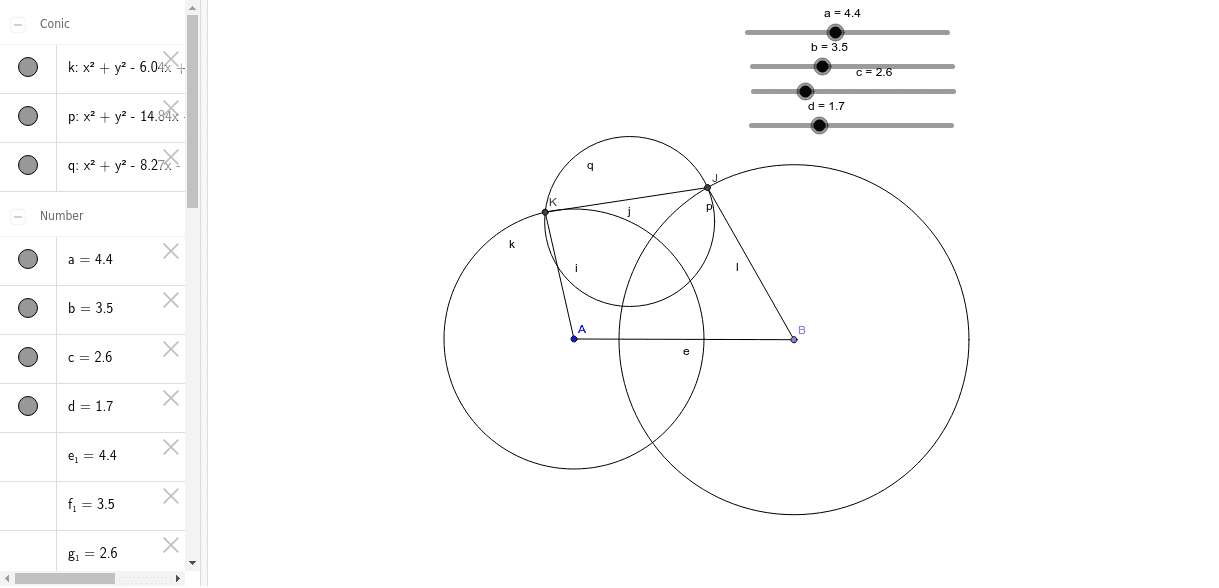
This example demonstrates creating a quadrilateral with all sides as sliders. Key mathematical concepts include geometric construction and slider animation. Using commands like Point, Segment, Circle, and Intersect, the lengths of the sides can be dynamically adjusted. Suitable for middle school and above students or teachers for teaching purposes.
GeoGebra Commands & Parameters
Point(Circle[A, abs(a)]) → BSegment(A, B) → ePoint(Circle[C, abs(b)]) → DSegment(C, D) → fPoint(Circle[E, abs(c)]) → FSegment(E, F) → gPoint(Circle[G, abs(d)]) → HSegment(G, H) → hCircle(A, g) → kCircle(B, f) → pPoint(k) → ICircle(I, h) → qIntersect(p, q, 2) → JIntersect(k, q, 1) → KSegment(A, K) → iSegment(K, J) → jSegment(J, B) → l
AI Drawing Prompt Reference
Draw a quadrilateral where the length of each side can be adjusted using sliders. Start by drawing a circle at point A and taking a point B on the circle as the endpoint of the first side; then draw a circle at point C and take a point D on the circle as the endpoint of the second side; next, draw a circle at point E and take a point F on the circle as the endpoint of the third side; finally, draw a circle at point G and take a point H on the circle as the endpoint of the fourth side. By adjusting the length sliders of each side, you can dynamically change the shape of the quadrilateral.
The prompt above was compiled from the original drawing commands and is for reference only.