
Practice Trig Ratios: Random Angles for Sine and Cosine
Loading the math board and drawing, please wait…
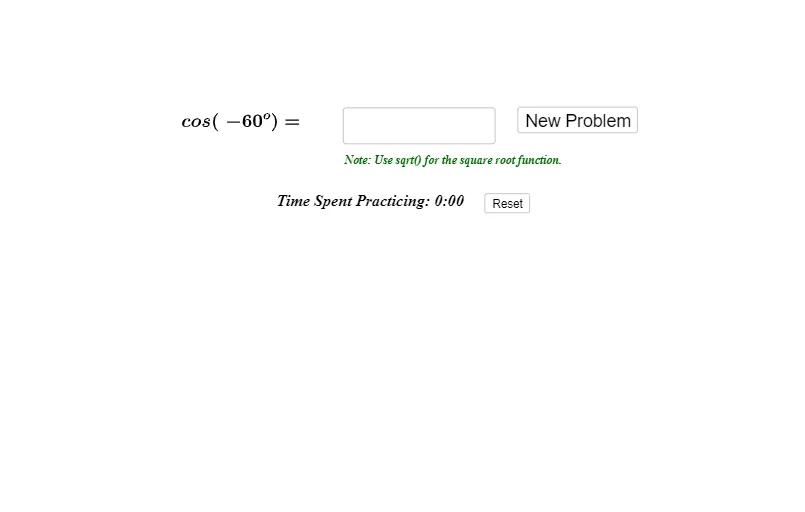
This GeoGebra example demonstrates interactive practice of trigonometric ratios by randomly generating angles and asking the learner to enter the corresponding sine value (and/or cosine). It compares user input with the correct function value and provides feedback through an attempts counter and a timer. The main math concepts are the sine and cosine functions, evaluation of trig functions with angles (including expressions involving π), dynamic formula construction, and basic conditional logic to judge correctness. Construction highlights: Random and RandomElement generate the practice parameters; FractionText and SurdText help format numbers for display; Textfield and InputBox1/InputBox2 collect answers; FormulaText is used to build expressions like sin(c·π) and cos(…)=… dynamically; Mod and If constrain/gate values and drive correctness checks; button controls (button1/button2/button3) with Timer and Minutes/Seconds manage the session; a counter variable (e.g., Right) updates “Number of Correct Attempts”. Suitable for middle/high school students and for classroom demos, self-study drills, or quiz-like learning modules focused on trigonometry.
GeoGebra Commands & Parameters
Random(-12, 12) → aRandomElement({1, 2, 3, 4, 6}) → bFractionText(a / b) → cTextfield(Sine) → InputBox1RandomElement({1, 2, 0.5, 4}) → jTextfield(Cosine) → InputBox2SurdText(f((d * pi))) → text2SurdText(cos((d * pi))) → text4Mod(Timer, 60) → SecondsIf(Seconds < 10, "0", "") → text9
AI Drawing Prompt Reference
Create an interactive trigonometry practice interface with a randomly generated angle displayed as a fraction involving pi. Include two input fields for sine and cosine values, with the correct answers shown nearby in radical or fractional form. Add three buttons for starting, submitting, and resetting the exercise. Display a timer in the top-right corner with minutes and seconds, including leading zeros. Show a counter for correct attempts in the top-left. Keep the layout clean and suitable for student drills.
The prompt above was compiled from the original drawing commands and is for reference only.