
Practice the Steps of Quadratic Formula
Loading the math board and drawing, please wait…
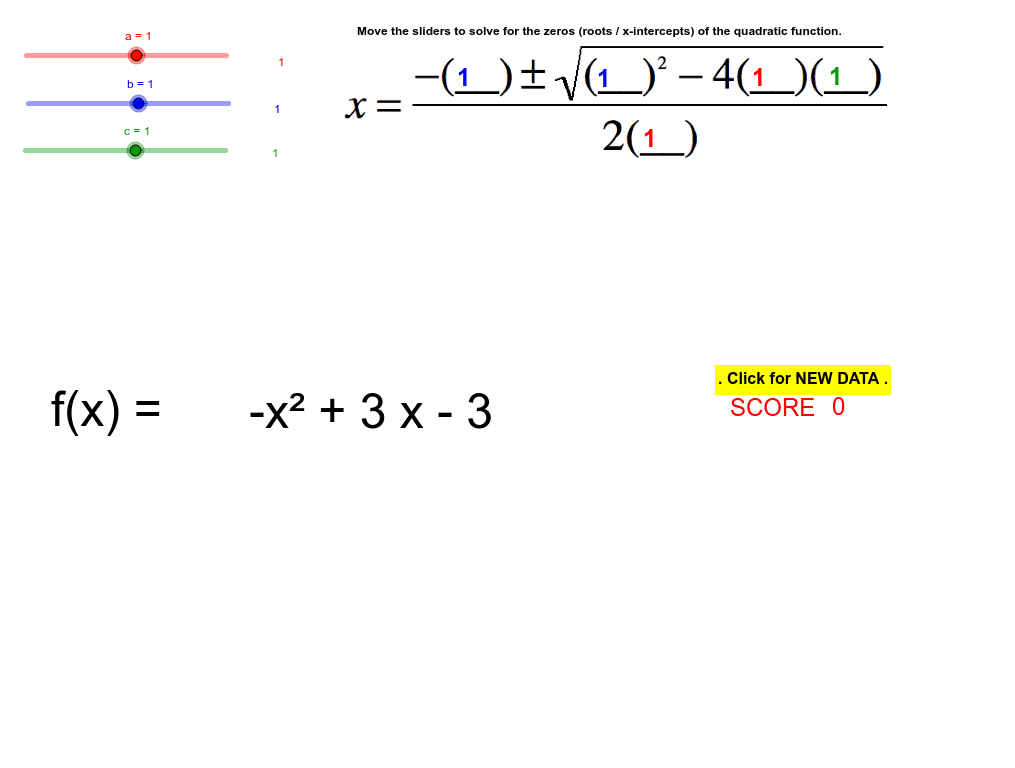
This example demonstrates how to use GeoGebra to calculate and visualize the quadratic formula, involving core concepts like quadratic functions, the quadratic formula, and algebraic operations. It utilizes commands such as Text, RandomElement, If, and Textfield, along with objects like a, b, c, d, e, j, text1, text2, etc., for interactive practice. Suitable for high school mathematics teaching or self-practice to enhance understanding of quadratic formula applications.
GeoGebra Commands & Parameters
Text(a) → text1Text(b) → text2Text(c) → text3Text(d) → text4Text(e) → text5Text(j) → text6Text(b) → text8Text(b) → text9Text(a) → text10Text(a) → text11Text(d) → text12Text(e) → text13Text(j) → text14RandomElement(aaa) → aaRandomElement(aaa) → bbRandomElement(aaa) → ccText(f) → text15Text(k) → text18If(dd < 0, 0, If[dd > 0, 2, 1]) → kkTextfield(stuxpp) → inputBox1Textfield(stuxnp) → inputBox2Text(score) → text20Text(c) → text7Text(d) → text24Text(e) → text25Text(j) → text26Textfield(clacd) → inputBox3
AI Drawing Prompt Reference
Create an interactive educational layout for practicing the quadratic formula. Show a quadratic function graph in the center, with several text boxes displaying the coefficients a, b, c, the discriminant d, the roots e, and the result j. Randomly generate three sets of coefficients and display the sign of the discriminant (negative, zero, or positive) to indicate the number of roots. Include three input fields for users to enter intermediate calculation steps, and a score display area. The overall design should be clear and suitable for classroom demonstration or self-study.
The prompt above was compiled from the original drawing commands and is for reference only.