
Kite Area Slider Demonstration
Loading the math board and drawing, please wait…
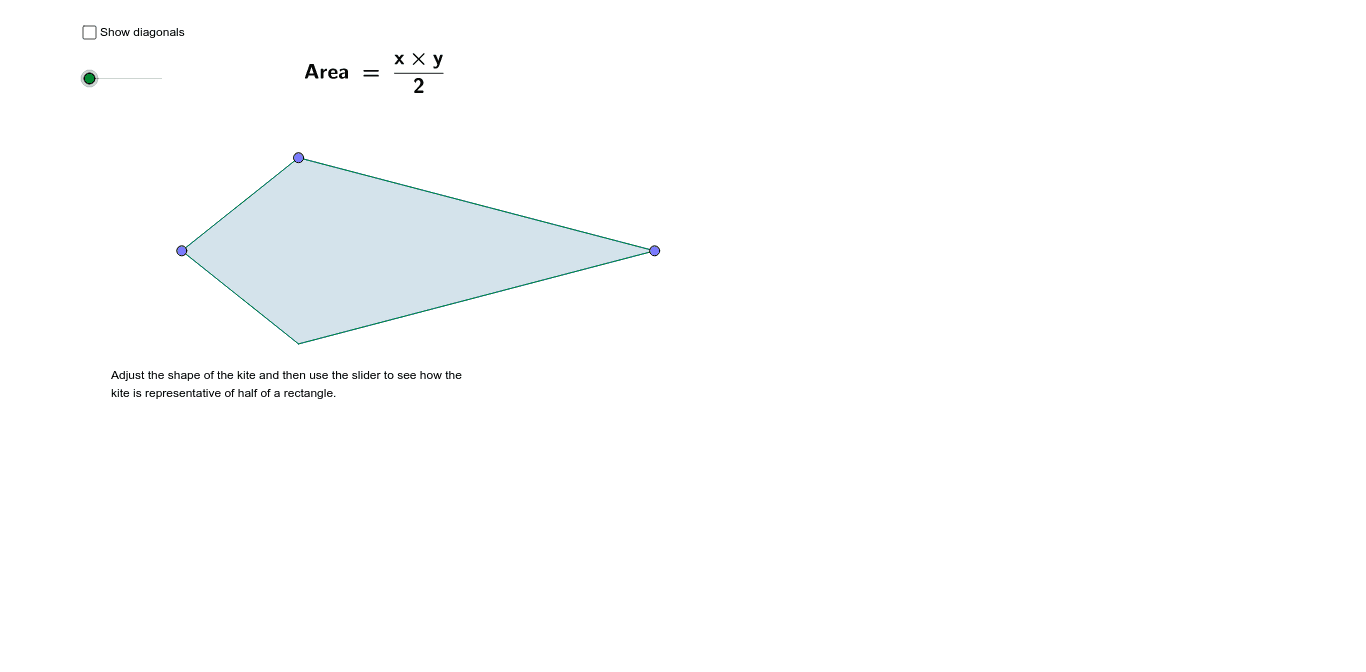
This example dynamically demonstrates how the area of a kite changes with varying diagonals using a slider. It covers core math concepts like the kite area formula (product of diagonals divided by two), Pythagorean Theorem, and coordinate geometry relationships. GeoGebra commands and objects used include Point, Segment, Polygon, Midpoint, and Vector for construction. Ideal for high school mathematics teaching to visually understand kite area calculations and dynamic geometry.
GeoGebra Commands & Parameters
Point(a) → APoint(a) → BPoint(b) → CMirror(C, a) → C'_1Intersect(b, a) → DPolygon(C, D, B) → poly1, b_1, c, dPolygon(C, D, A) → poly2, a_1, c_1, d_1Polygon(A, D, C'_1) → poly3, c', a_2, d_2Polygon(C'_1, D, B) → poly4, b_2, c'_1, d_3Midpoint(d_1) → EMidpoint(d_2) → FMidpoint(d_3) → GMidpoint(d) → HRotate(C, (-α), H) → C'_2Rotate(D, (-α), H) → D'_1Rotate(B, (-α), H) → B'_1Polygon(C'_2, D'_1, B'_1) → poly1', b', c'_2, d'Rotate(C, α, E) → C'_3Rotate(D, α, E) → D'_2Rotate(A, α, E) → A'_1Polygon(C'_3, D'_2, A'_1) → poly2', a', c'_3, d'_1Rotate(A, (-α), F) → A'_2Rotate(D, (-α), F) → D'_3Rotate(C'_1, (-α), F) → IPolygon(A'_2, D'_3, I) → poly3', i, a'_1, d'_2Rotate(C'_1, α, G) → JRotate(D, α, G) → D'Rotate(B, α, G) → B'_2Polygon(J, D', B'_2) → poly4', b'_1, j, d'_3Segment(C, C'_1) → eVector(D, A) → uTranslate(C, Vector[((α / 180 * 57) * u)]) → C'Translate(C'_1, Vector[((α / 180 * 57) * u)]) → TSegment(C', T) → e'Vector(D, C'_1) → vSegment(A, B) → fTranslate(A, Vector[((α / 180 * 57) * v)]) → A'Translate(B, Vector[((α / 180 * 57) * v)]) → B'Segment(A', B') → f'Midpoint(f') → K
AI Drawing Prompt Reference
Draw a kite and dynamically change its area by adjusting the lengths of its diagonals. Start by creating two points A and B, then create their mirrored points C and C'. Next, construct a quadrilateral using points C and D, and another one using points C and A. Find the midpoints E, F, G, and H of the diagonals, and use rotation to adjust the kite's shape while keeping the diagonal lengths constant. Finally, use rotation and translation to dynamically change the kite's area.
The prompt above was compiled from the original drawing commands and is for reference only.