
Interactive Fraction Ordering Tool with Self-Correction
Loading the math board and drawing, please wait…
In collections
Primary School Mathematics Collection
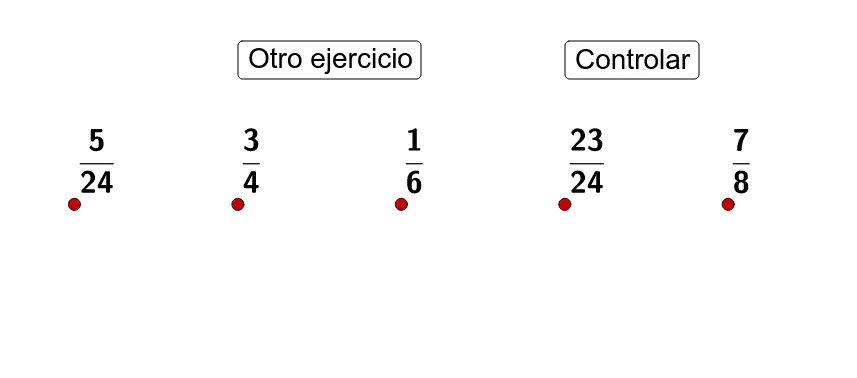
This GeoGebra example demonstrates an interactive tool designed for ordering fractions with automated self-correction capabilities, providing a visual and engaging way for students to master fraction comparison. The core mathematical concepts include fraction comparison, numerical ordering, and the visual representation of rational numbers. To construct this dynamic worksheet, various GeoGebra commands are utilized: `RandomElement` and `Sequence` are used to generate random lists of fractions, `Sort` orders them, while geometric elements like `Segment`, `Circle`, `Line`, and `Mirror` are employed to render the visual models and user interface. Conditional logic via `If` commands handles the input validation and self-correction feedback. This tool is highly suitable for elementary and middle school mathematics classrooms, serving as an engaging exercise for students to develop their number sense, fraction comparison skills, and logical reasoning in an interactive self-paced learning environment.
GeoGebra Commands & Parameters
Segment((0, 0), (4, 0)) → aIf(Length[lista3] > 0, "=(" + (Element[lista3, 1]) + ",0)", "") → tekst1If(B ≟ A, "B", If[C ≟ A, "C", If[D ≟ A, "D", If[E ≟ A, "E", ""]]]) → textAIf(Length[lista3] > 0, {textA + tekst1}, {}) → listaAIf(A ≟ B, "A", If[C ≟ B, "C", If[D ≟ B, "D", If[E ≟ B, "E", ""]]]) → textBIf(Length[lista3] > 0, {textB + tekst1}, {}) → listaBIf(A ≟ C, "A", If[B ≟ C, "B", If[D ≟ C, "D", If[E ≟ C, "E", ""]]]) → textCIf(Length[lista3] > 0, {textC + tekst1}, {}) → listaCIf(A ≟ D, "A", If[B ≟ D, "B", If[C ≟ D, "C", If[E ≟ D, "E", ""]]]) → textDIf(Length[lista3] > 0, {textD + tekst1}, {}) → listaDIf(A ≟ E, "A", If[B ≟ E, "B", If[C ≟ E, "C", If[D ≟ E, "D", ""]]]) → textEIf(Length[lista3] > 0, {textE + tekst1}, {}) → listaESequence(Element[lista2, i] + 1, i, 1, 5) → lista4RandomElement(lista6) → A1RandomElement(lista6 \ {A1}) → A2RandomElement(lista6 \ {A1, A2}) → A3RandomElement(lista6 \ {A1, A2, A3}) → A4RandomElement(lista6 \ {A1, A2, A3, A4}) → A5Sort(lista7) → lista8Sequence(Text[FractionText[Element[lista7, i] / 24], Element[lista5, i] + (-0.03, 0.5), true, true], i, 1, 5) → lista10Sequence(IndexOf[Element[lista8, i], lista7], i, 1, 5) → lista9Sequence(IndexOf[i, lista4], i, 1, 5) → lista11Circle(F, G) → cCircle(F, G) → dMirror(I, F) → I'Mirror(H, F) → H'Line(H', I') → eMirror(F, e) → F'If(b, CircleArc[F, H', I'], CircleArc[F', I', H']) → fCircle(I, 0.1) → gCircle(H, 0.1) → h
AI Drawing Prompt Reference
This is an interactive tool for fraction comparison. The central horizontal line segment has circles on both sides, each representing a fraction. Labels with fractions appear on the line, and fraction text is displayed above the circles. Users can drag or click to adjust the order of circles, and the tool automatically updates the sorted order. A feedback area appears when incorrect input is made, prompting the correct ordering. The design is simple and intuitive, suitable for math teaching to help students understand fraction size relationships and sorting logic.
The prompt above was compiled from the original drawing commands and is for reference only.