
Interactive Construction of a Right Triangle
Loading the math board and drawing, please wait…
In collections
The GeoGebra's Toolbox for Teachers and Students
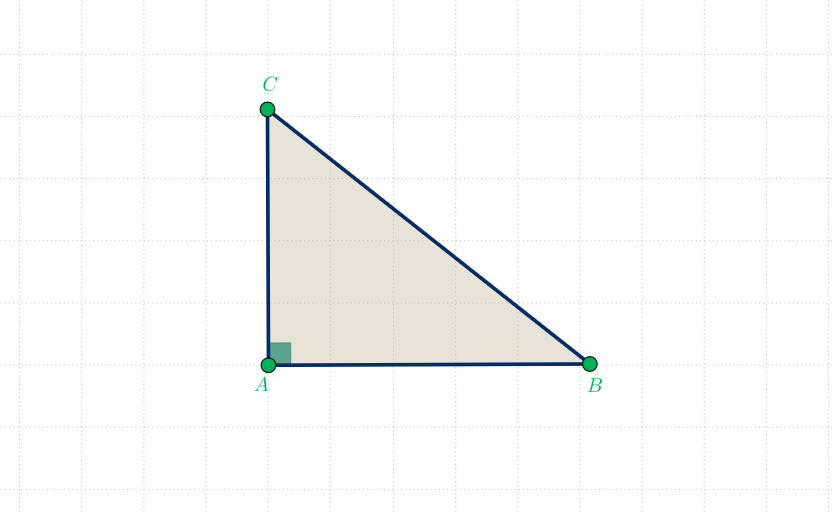
This GeoGebra example uses interactive geometry to demonstrate how a right triangle is constructed and how its key measurements update dynamically. Learners can observe the right-angle condition in action and relate triangle shape to geometric properties such as perimeter-related thinking and angle measurement. The core math concepts include the definition of a right triangle (a 90° angle), fundamental geometric entities (points, segments, and triangles as polygons), and angle computation/visualization under construction constraints. Construction highlights: Segment is used to draw the triangle’s sides; OrthogonalLine creates a perpendicular line to enforce the right-angle condition; Point generates and controls the vertices; Polygon connects vertices to form the triangle; Angle labels/measures the important angle (e.g., α). Typical objects include points like A, B and constructed vertices, along with the angle object α. Suitable for middle school through early high school geometry lessons and for interactive practice in geometric construction and measurement.
GeoGebra Commands & Parameters
Segment(A, B) → aOrthogonalLine(A, a) → bPoint(b) → CPolygon(A, B, C) → poli1, c, a_1, b_1Angle(B, A, C) → α
AI Drawing Prompt Reference
Draw a right triangle by starting with a line segment, then draw a perpendicular line from one endpoint of the segment, create a point at the intersection of the segment and the perpendicular line, and finally connect the three points to form the triangle, labeling the right angle and one acute angle.
The prompt above was compiled from the original drawing commands and is for reference only.