
Dynamic Illustrator for Right Triangle Trig Ratios: Sine, Cosine, Tangent
Loading the math board and drawing, please wait…
In collections
Thinking Classroom Exploration: RT Trig (Solving for Sides)
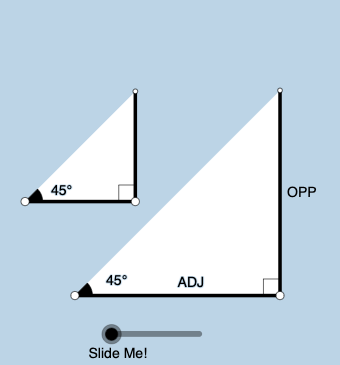
This GeoGebra example uses a right triangle to dynamically illustrate how trig ratios change as the angle varies, revealing the geometric meanings of sine, cosine, and tangent. The key math concepts are right-triangle trigonometry (sin/cos/tan), angle measurement and labeling, and the correspondence between side lengths and trig ratios, with connections to unit-circle-style constructions. It is built by creating points and segments (Point, Segment) and enforcing right angles with OrthogonalLine, then rotating the configuration using Rotate while tracking the moving angle with Angle and Ray. A Circle and Intersect are used to obtain relevant intersection points for the trigonometric interpretation, while Polygon and additional segments form the visible geometric regions. Textfield/Text provide dynamic labels for ratios and angles, and Midpoint plus RotateText help keep annotations clear as the figure updates. Suitable for middle and high school students to learn or explore trigonometric ratios, and for classroom demonstrations or self-study.
GeoGebra Commands & Parameters
Point(Ray[A, A + (1, 0)]) → BSegment(A, B) → fOrthogonalLine(B, f) → gRotate(B, (a * pi / 180), A) → B'Angle(B, A, B') → αRay(A, B') → hCircle(B, 2) → cIntersect(c, g, 2) → CRay(B, C) → iIntersect(h, i) → DSegment(B, D) → jSegment(A, D) → kPolygon(A, B, D) → poly1, d, a_1, bRotate(B, If[0 < e ≤ 1, (-((e * (pi / 2 - α)))), α - pi / 2], D) → B'_1Rotate(D, If[0 < e ≤ 1, (-((e * (pi / 2 - α)))), α - pi / 2], D) → D'Segment(B'_1, D') → j'Rotate(A, If[0 < l ≤ 1, (α * l), α], A) → A'Rotate(B, If[0 < l ≤ 1, (α * l), α], A) → B'_2Segment(A', B'_2) → f'Rotate(B, If[0 < m ≤ 1, (m * pi / 2), pi / 2], B) → B'_3Rotate(D, If[0 < m ≤ 1, (m * pi / 2), pi / 2], B) → D'_1Segment(B'_3, D'_1) → j'_1Textfield(a) → InputBox1Angle(D, B, A) → βMidpoint(A, D) → ERotateText(text7, α) → text8Midpoint(A', B'_2) → FRotateText(text9, α) → text10Point(Ray[G, G + (1, 0)]) → HSegment(G, H) → tRotate(H, (a * pi / 180), G) → H'Ray(G, H') → f_1OrthogonalLine(H, t) → g_1Intersect(g_1, f_1) → IPolygon(G, H, I) → t1, i_1, g_2, h_1Angle(H, G, I) → γSegment(H, I) → j_1Rotate(H, If[0 < e ≤ 1, ((-e) * (pi / 2 - α)), (-(pi / 2 - α))], I) → H'_{1}Rotate(I, If[0 < e ≤ 1, ((-e) * (pi / 2 - α)), (-(pi / 2 - α))], I) → I'Segment(H'_{1}, I') → k_1Rotate(G, If[0 < l ≤ 1, (l * α), α], G) → G'Rotate(H, If[0 < l ≤ 1, (l * α), α], G) → H'_{2}Segment(G', H'_{2}) → t'Angle(I, H, G) → δRotate(H, If[0 < m ≤ 1, (m * pi / 2), pi / 2], H) → H'_{3}Rotate(I, If[0 < m ≤ 1, (m * pi / 2), pi / 2], H) → I'_{1}Segment(H'_{3}, I'_{1}) → l_1
AI Drawing Prompt Reference
Construct a dynamic right triangle on a plane: fix a vertex and use one initial ray as the starting side, then rotate the other side about the vertex to vary the angle. From the rotated endpoint, draw the triangle’s connecting segments and enforce a right angle using an orthogonal line so the triangle stays right. Use a circle centered at the rotated endpoint together with intersections of the circle with the orthogonal line and with the constructed ray to obtain the key interpretation points, then connect these points to form the visible triangular regions. Include a labeled angle at the vertex that updates with rotation, and add dynamic text fields to display the sine, cosine, and tangent quantities corresponding to the side lengths as the angle changes, keeping the auxiliary rays and annotation placement readable during motion.
The prompt above was compiled from the original drawing commands and is for reference only.