
Distances and Parabolas: Linking Distance Definitions to a Polynomial Graph
Loading the math board and drawing, please wait…
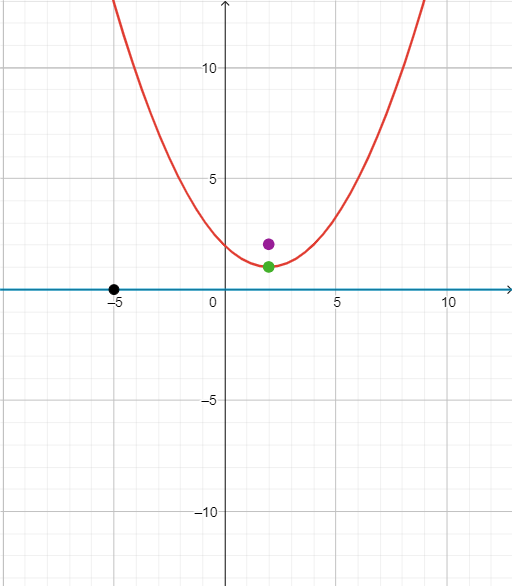
This example demonstrates how a distance constraint can be used to generate and visualize a parabola within a single interactive geometry figure. Students can see how “equal-distance” conditions (from points/lines in the geometric setup) translate into a curve’s shape and corresponding functional relationship. The core ideas include the geometric definition of a parabola, distance reasoning, coordinate geometry, and polynomial-function style representation. Construction-wise, the GeoGebra setup relies on creating and labeling key points (via the Point command and objects b, a, c, A, B, C), defining an equation or constraint (object eq), and representing the resulting relationship as a function/graph object (object f), along with controlling label visibility (showLabel1, showLabel2, showLabel3). Suitable for middle school to high school learners for introducing analytic geometry and function visualization, and for classroom demonstrations or exploratory practice.
GeoGebra Commands & Parameters
Point(f) → C
AI Drawing Prompt Reference
Create a coordinate-plane visualization that connects a distance constraint to a parabola. Start by placing a key point labeled C, then define a geometric setup where an equal-distance condition from points or lines determines a locus. Use that constraint to generate the resulting curve, and display it as a functional relationship (a parabola graph) reflecting the implied polynomial-style form. Optionally adjust which key labels are shown to emphasize the link between the distance condition and the curve’s shape.
The prompt above was compiled from the original drawing commands and is for reference only.