
Copy a Line Segment (Compass and Straightedge)
Loading the math board and drawing, please wait…
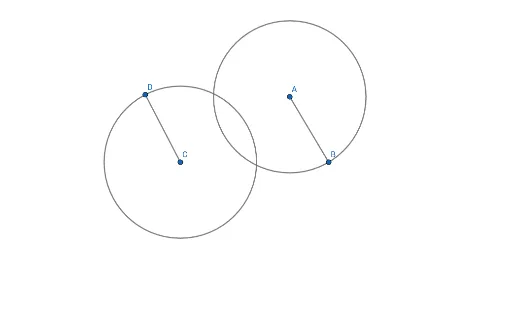
This example demonstrates how to copy a given line segment using basic compass and straightedge operations in GeoGebra. The core mathematical concept is classical geometric construction, specifically transferring a length by maintaining the compass radius. The construction uses the Segment command to create the original segment AB, the Circle command to draw a circle centered at A with radius AB, and another circle centered at C with the same radius. The Point command identifies the intersection D, and the Segment command connects C and D to form the copied segment. This example is ideal for middle school geometry lessons, illustrating the logic of Euclidean constructions and serving as an introductory GeoGebra exercise for mastering fundamental drawing tools.
GeoGebra Commands & Parameters
Segment(A, B) → fCircle(A, Segment[B, A]) → cCircle(C, Radius[c]) → dPoint(d) → DSegment(D, C) → g
AI Drawing Prompt Reference
Draw a line segment and then copy it using compass and straightedge. Start by drawing a line segment. Next, draw a circle with one endpoint of the segment as the center and the segment's length as the radius. Then, draw another circle with the other endpoint as the center and the same radius. The intersection point of the two circles connects to the other endpoint of the original segment to form the copied segment.
The prompt above was compiled from the original drawing commands and is for reference only.