
Construct Parallelogram and Rhombus
Loading the math board and drawing, please wait…
In collections
Parallelogramm und Raute: Eigenschaften und Konstruktionen
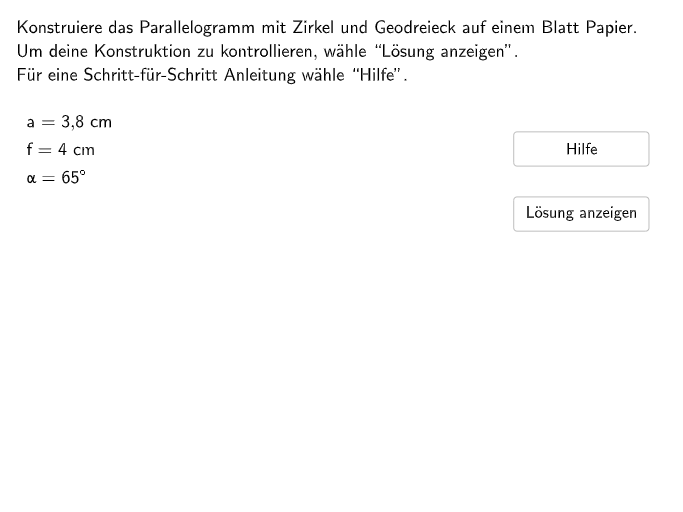
This example demonstrates how to construct a parallelogram and a rhombus using GeoGebra. Key mathematical concepts include parallel lines, diagonal properties, and rotation. Commands used include Join, Element, Rotate, If, and Polygon. Suitable for 5-6th grade students to learn the construction of special quadrilaterals.
GeoGebra Commands & Parameters
Join(Sequence[Shuffle[Sequence[1, 21]], m, 1, 9]) → listExnumElement({P1, P2, P3, P4, P5, P6, P7, P8, P9, P10, P11, P12, P13, P14, P15, P16, P17, P18, P19, P20, P21}, exnum) → ARotate(A + ((scale * b) * UnitVector[Vector[A, B]]), alp, A) → DIf(exnum ≤ 11, 0, 1) → questionTypeTextfield(input1) → InputBox1Textfield(input2) → InputBox2Polygon(PtopLeftCornerFeedback, PtopRightCornerFeedback, PbottomRightCornerFeedback, PbottomLeftCornerFeedback) → rectangleCorrect, rectangleCorrectS3, rectangleCorrectS4, rectangleCorrectS2, rectangleCorrectS1Shuffle(Sequence[Random[0, 10], i, 1, 100]) → randomNosForX, {1, 10, 10, 5, 10, 6, 4, 3, 8, 4, 8, 3, 2, 2, 2, 4, 10, 7, 8, 0, 0, 7, 0, 5, 8, 0, 6, 5, 8, 1, 0, 2, 3, 10, 5, 4, 5, 0, 0, 5, 6, 6, 9, 1, 7, 6, 2, 5, 9, 8, 3, 10, 5, 7, 8, 3, 6, 9, 8, 6, 5, 0, 2, 2, 4, 7, 6, 9, 8, 9, 2, 1, 0, 10, 8, 8, 5, 8, 2, 10, 5, 4, 5, 1, 1, 3, 7, 10, 10, 10, 1, 8, 8, 9, 9, 8, 6, 7, 3, 2}Element(randomNosForX, Mod[questionCount, 100] + 1) → numXShuffle(Sequence[Random[0, 10], i, 1, 100]) → randomNosForY, {5, 0, 4, 4, 5, 7, 4, 10, 4, 10, 8, 5, 0, 0, 8, 2, 9, 6, 10, 2, 3, 5, 2, 4, 7, 10, 3, 9, 1, 8, 4, 2, 2, 9, 5, 8, 7, 4, 7, 5, 8, 4, 5, 4, 6, 1, 6, 6, 3, 10, 2, 9, 0, 9, 5, 1, 9, 8, 10, 2, 10, 5, 8, 3, 10, 7, 6, 1, 1, 1, 8, 1, 8, 10, 3, 9, 1, 3, 0, 2, 4, 4, 10, 4, 5, 8, 2, 5, 5, 7, 2, 8, 2, 4, 5, 4, 1, 0, 0, 5}Element(randomNosForY, Mod[questionCount, 100] + 1) → numYAppend(true, Sequence[If[randomNosForX(i) ≟ randomNosForX(i - 1), false, true], i, 2, 100]) → stayXAppend(true, Sequence[If[randomNosForY(i) ≟ randomNosForY(i - 1), false, true], i, 2, 100]) → stayYRemove(Sequence[If[stayX(i), randomNosForX(i), 0], i, 1, 100], Sequence[0, i, 1, 100]) → randomNosForXwithoutRepeatElement(randomNosForXwithoutRepeat, Mod[questionCount, Length[randomNosForXwithoutRepeat]] + 1) → numXwithoutRepeatDefined((input1 * input2)) → fixedElement({"Parallelogramm", "Raute"}, questionType + 1) → objectPolygon(A, B, C, D) → v1, a1, b1, c1, d1Angle(v1) → α, β, γ, δSegment(A, C) → e1Segment(B, D) → f1CircleArc(B, Rotate[C, (360 - 10)°, B], Rotate[C, 10°, B]) → dCircleArc(A, Rotate[C, (360 - 10)°, A], Rotate[C, 10°, A]) → hCircleArc(B, Rotate[D, (360 - 20)°, B], Rotate[D, 20°, B]) → kSegment(C, C + (over * UnitVector[Vector[D, C]])) → c2Segment(D, D + (over * UnitVector[Vector[C, D]])) → c3Segment(C, C + (over * UnitVector[Vector[B, C]])) → b2Segment(D, D + (over * UnitVector[Vector[A, D]])) → d2Polygon(Araute, Braute, Craute, Draute) → v2, rautea1, rauteb1, rautec1, rauted1Segment(Araute, Craute) → rautee1Segment(Draute, Braute) → rautef1Intersect(rautef1, rautee1) → MAngle(Draute, M, Araute) → εAngle(v2) → ζ, η, θ, ιSegment(Draute, Draute + (0.5 * UnitVector[Vector[Braute, Draute]])) → rautef1aSegment(Braute, Braute + (0.5 * UnitVector[Vector[Draute, Braute]])) → rautef1bCircleArc(B, Rotate[C, (360 - 30)°, B], Rotate[C, 30°, B]) → gCircleArc(A, Rotate[D, (360 - If[layout ≟ 3 ∨ layout ≟ 7, 10, 15])°, A], Rotate[D, If[layout ≟ 3 ∨ layout ≟ 7, 10, 30]°, A]) → cIf(step ≠ 1, SK11, SK12) → SK1If(step ≠ 1, SK21, SK22) → SK2If(page ≟ 0, 125, 75) → posAngabeElement({e, e, f, e, b, b, e, e, a, e, f}, layout) → checkSegment(A, C) → checkE
AI Drawing Prompt Reference
Draw a parallelogram and a rhombus to demonstrate their construction. Start by creating a parallelogram, then use rotation to form a rhombus from one of its diagonals. Include key points, sides, and angles, highlighting parallel lines and rotational symmetry. The final image should feature both quadrilaterals, labeled as a parallelogram and a rhombus, along with relevant annotations and construction lines.
The prompt above was compiled from the original drawing commands and is for reference only.