
Comparing Integers: Interactive Random Number Comparison with Inequality Directi
Loading the math board and drawing, please wait…
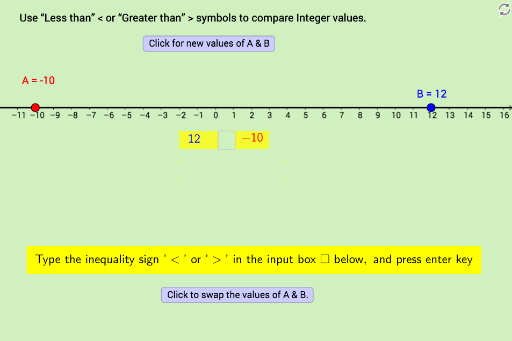
This GeoGebra example demonstrates an interactive tool for comparing two random integers, visually reinforcing the concepts of greater than, less than, and equality. The core mathematical concepts involve integer ordering, inequality symbols (<, >, =), and logical conditional statements. The construction uses the Random command to generate random values (valueA, valueB), Point and Polygon objects to create visual representations, Textfield for displaying numbers, and If statements to determine relationships (A equals B, A less than B, A greater than B). A button (buttonSwapInequalitySignDirection) allows users to toggle the direction of the inequality sign, with supporting objects like AlessB, AgreaterB, and various polygon elements providing dynamic visual feedback. This resource is suitable for elementary to middle school students learning integer comparison, as well as for teachers demonstrating inequality rules in a classroom setting. It encourages hands-on exploration of how changing the sign direction affects the comparison outcome.
GeoGebra Commands & Parameters
Random(-11, 13) → valueARandom(-11, 13) → valueBPoint(a) → CPolygon(D4, D3, D2, D1) → poly1, d4, d3, d2, d1Polygon(E4, E3, E2, E1) → poly2, e4, e3, e2, e1Textfield(inequalitysign) → inputBoxInequalitySignIf(b ≟ true ∧ (x(B) > x(A)), ">", If[b ≟ false ∧ (x(A) > x(B)), ">", "<"]) → CorrectAnswerIf(CorrectAnswer ≟ inequalitysign, "Correct!", "Check,...Try Again") → text2
AI Drawing Prompt Reference
Create an interactive integer comparison diagram with two random integers displayed in text boxes, each represented by a colored polygon block. The integers range from -11 to 13. Include an input field for an inequality sign (>, <, or =) that users can toggle. The system automatically determines the correct sign based on the two numbers and shows feedback text like "Correct!" or "Check, Try Again". The layout has two number display areas, one sign input area, and one result message area, with clear color coding for educational use.
The prompt above was compiled from the original drawing commands and is for reference only.