
三角形面积计算演示
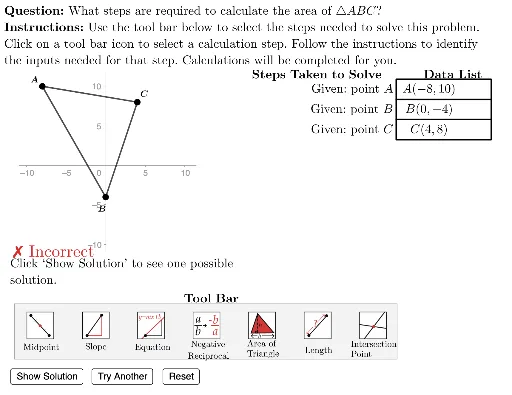
几何画板及绘图内容加载中,请稍等……
本范例演示了如何通过 GeoGebra 动态计算三角形的面积。涉及的核心数学概念包括三角形面积公式、向量运算和坐标几何。构造过程中运用了 Area, Polygon, Length, UnitVector, Zip, TableText, LaTeX 等命令和对象,通过滑块和动态点展示面积变化。适合初中及以上学生用于理解面积计算方法及几何作图技巧。
GeoGebra 命令及参数
Element(G4, caseNum) → A4Element(G3, caseNum) → A3Area(Polygon[{A3, A4, A5}]) → answerPolygon({DataListFrameAnchor, DataListFrameAnchor + (12 * u), DataListFrameAnchor + (12 * u) - vHeight, DataListFrameAnchor - vHeight}) → ValueFrameTemplateLength(dTypes) → numStepsSequence(Translate[ValueFrameTemplate, Vector[(-((vHeight * i)))]], i, 0, numSteps - 1) → ValueFramesSequence((-10, -22) + ((3.5 * i) * u), i, 0, 14) → iconAnchorsSequence(Polygon[Element[iconAnchors, i], Element[iconAnchors, i + 1], 4], i, 1, (2 * Length[iconAnchors]), 2) → iconFramesPolygon({(left, bottom), (left, top), (right, top), (right, bottom)}) → viewboxPolygon({ToolAnchor - (2 * v) - u, ToolAnchor + (5 * v) - u, ToolAnchor + (5 * v) + ((2.3 + (Length[iconAnchors] * 3)) * u), ToolAnchor - (2 * v) + ((2.3 + (Length[iconAnchors] * 3)) * u)}) → toolBarUnitVector(Vector[A3, A4]) → uABElement(iconFrames, currentAction) → iconHighlighterElement(ValueFrames, 1) → vFrame1Element(ValueFrames, 2) → vFrame2Element(ValueFrames, 3) → vFrame3Element(ValueFrames, 4) → vFrame4Element(ValueFrames, 5) → vFrame5Element(ValueFrames, 6) → vFrame6Element(ValueFrames, 7) → vFrame7Zip(Element[ValueFrames, A], A, selectedList) → highlightedItemsTableText({dDisplay}, "vc") → valueTblTableText({Join[{{"\phantom{find the equation of a line through (-1,-3) with slope -5}"}, dSteps}]}, "vr") → stepsTableLaTeX((((("\text{\textbf{Question: }" * QUESTION) * "\\\textbf{Instructions: }") * INSTRUCTIONS) * "}")) → allInstrucPolygon({A3, A4, A5}) → D3Element(ValueFrames, 8) → vFrame8Element(ValueFrames, 9) → vFrame9Element(ValueFrames, 10) → vFrame10
AI 绘图提示语参考
画一个动态计算三角形面积的图形,展示通过滑块和动态点变化面积的过程。包含一个三角形,通过向量运算和坐标几何计算面积,并用文本框显示结果和步骤。图形分为多个部分:一个主三角形,多个通过向量平移生成的平行四边形,以及一个包含步骤说明的表格。先画出主三角形,再生成平行四边形,最后添加文本框。
以上提示语为根据原始绘图命令整理而来,仅供参考。