
利用天平解决乘法方程
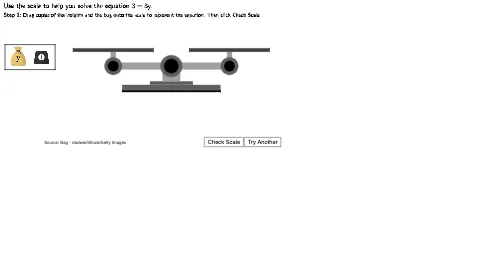
几何画板及绘图内容加载中,请稍等……
①本范例通过动态天平演示如何通过平衡法解决乘法方程;②涉及核心数学概念包括方程平衡、乘法逆运算、几何直观;③构造要点:运用了Polygon(多边形)、Circle(圆)、Random(随机)、Textfield(文本框)、Frequency(频率)等GeoGebra命令与对象,如ScaleBottom系列对象代表天平托盘,ScaleArm代表杠杆臂;④适合初中及以上数学学习者,用于理解方程解法的直观模型和几何意义。
GeoGebra 命令及参数
Polygon((2.75, 1.95), (2.75, 2.05), (8.25, 2.05), (8.25, 1.95)) → ScaleBottom1, f, g, h, iPolygon((4.3, 2.35), (4.3, 2.55), (6.7, 2.55), (6.7, 2.35)) → ScaleBottom3, n, p, q, rPolygon((5, 2.55), (5, 3.25), (6, 3.25), (6, 2.55)) → ScaleBottom4, s, t, d, ePolygon((2.75, 2.05), (2.75, 2.35), (8.25, 2.35), (8.25, 2.05)) → ScaleBottom2, j, k, l, mPolygon(Left + (0, 0.2), Left - (0, 0.2), Right - (0, 0.2), Right + (0, 0.2)) → ScaleArm, f_1, g_1, h_1, i_1Circle(Left, 0.5) → LeftArmCircle1Circle(Left, 0.3) → LeftArmCircle2Circle(Right, 0.5) → RightArmCircle1Circle(Right, 0.3) → RightArmCircle2Polygon(Left - (0.15, 0), Left + (0.15, 0), Left + (0.15, 0.8), Left + (-0.15, 0.8)) → LeftArmStand, j_1, k_1, l_1, m_1Polygon(Right - (0.15, 0), Right + (0.15, 0), Right + (0.15, 0.8), Right + (-0.15, 0.8)) → RightArmStand, n_1, p_1, q_1, r_1Polygon(Left + (-2.25, 0.8), Left + (-2.25, 1), Left + (2.25, 1), Left + (2.25, 0.8)) → LeftTray, s_1, t_1, a_1, b_1Polygon(Right + (-2.25, 0.8), Right + (-2.25, 1), Right + (2.25, 1), Right + (2.25, 0.8)) → RightTray, c_1, d_1, e_1, f_2Circle((5.5, 3.4), 0.6) → ScaleBottom5Circle((5.5, 3.4), 0.4) → ScaleBottom6Random(1, 2) → sideorderPolygon((-3.8, 4.6), (-1, 4.6), (-1, 3.2), (-3.8, 3.2)) → ImageBox, c, g_2, h_2, i_2Textfield(usertext) → InputBox1Frequency(Sort[Insert[{0, 1, 2}, WeightLocator, -1]]) → WeightOccurencesFrequency(Sort[Insert[{0, 1, 2}, BagLocator, -1]]) → BagOccurences
AI 绘图提示语参考
绘制一个天平平衡模型,用于演示乘法方程的求解。底部有多个矩形底座,上方是水平横梁,两端各有一个圆形支点和竖直立柱,立柱顶端连接托盘。托盘上放置随机数量的砝码和未知数袋子,通过输入框调整数值,使天平保持平衡。整体为几何图形风格,包含矩形、圆形和文本输入区域,背景简洁,适合教学演示。
以上提示语为根据原始绘图命令整理而来,仅供参考。