
Kite Interactive: Geometry and Functions Combined
Loading the math board and drawing, please wait…
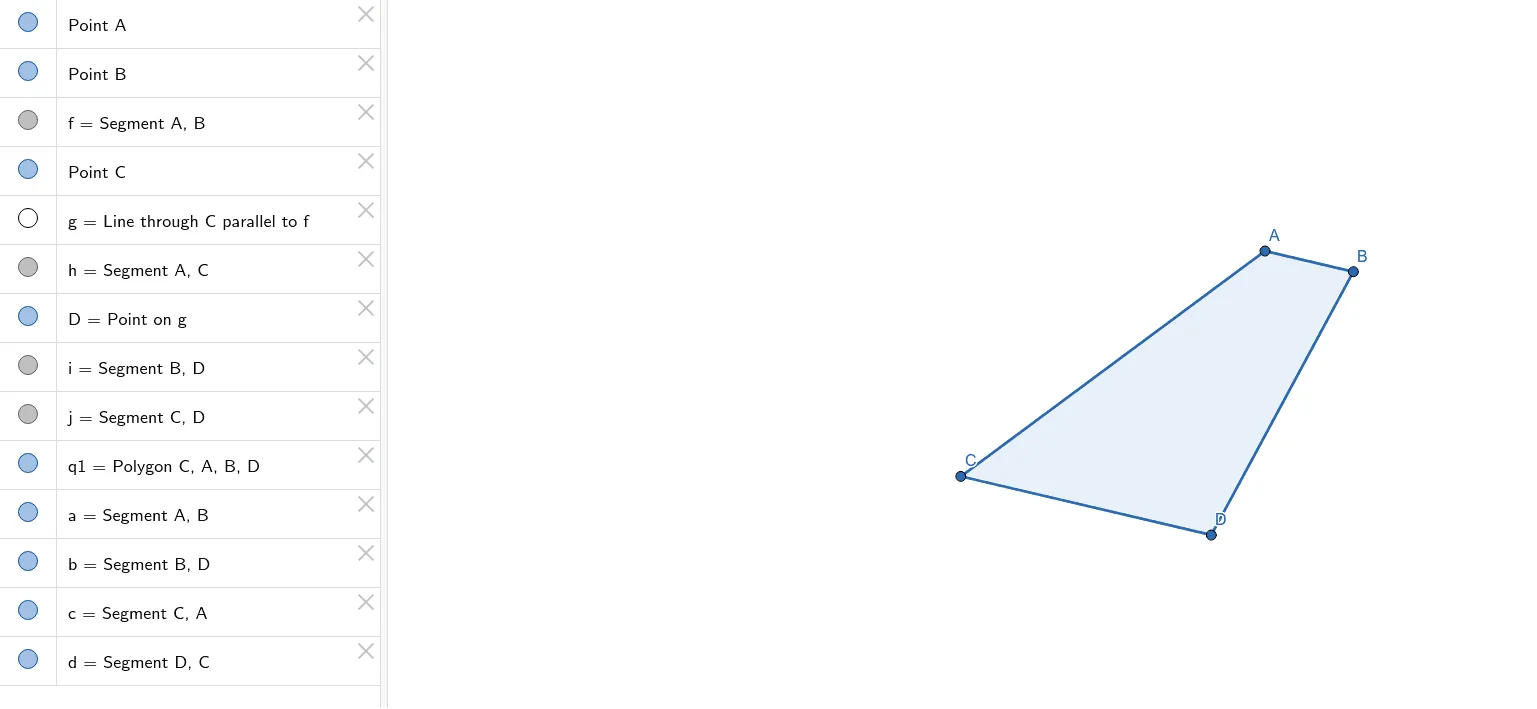
This interactive GeoGebra example demonstrates the construction of a kite-shaped polygon, allowing users to explore its geometric properties dynamically. The core mathematical concepts include kite properties (perpendicular diagonals, adjacent equal sides), line segments, points, and polygons, alongside integrated topics such as power functions, trigonometric functions, binomial distribution, ratios, LCM, and GCD. Based on the construction summary, the example uses GeoGebra commands like Segment, Line, Point, and Polygon, creating objects A, B, f, C, g, h, D, i, j, q1, c, a, b, d—where f, g, h, i, j may serve as auxiliary lines or function curves, q1 as the quadrilateral, and a, b, c, d as side lengths or parameters. This resource is suitable for middle and high school mathematics, offering a visual and interactive way to connect geometric construction with algebraic functions, and also useful for college-level review of elementary geometry.
GeoGebra Commands & Parameters
Segment(A, B) → fLine(C, f) → gSegment(A, C) → hPoint(g) → DSegment(B, D) → iSegment(C, D) → jPolygon(C, A, B, D) → q1, c, a, b, d
AI Drawing Prompt Reference
Draw a kite-shaped quadrilateral. Start with a horizontal base segment. From one endpoint, draw a vertical auxiliary line upward. From the other endpoint, connect to a point on that line, forming the upper part. Then connect that point back to both base endpoints to complete the quadrilateral. Show the diagonals as dashed lines, and label the side lengths. The kite should have perpendicular diagonals and equal adjacent sides.
The prompt above was compiled from the original drawing commands and is for reference only.