
Growth Percentages via Change Factor: New Value as % of Original (Over 100%)
Loading the math board and drawing, please wait…
In collections
Prozentrechnung: Vermehrung und Verminderung
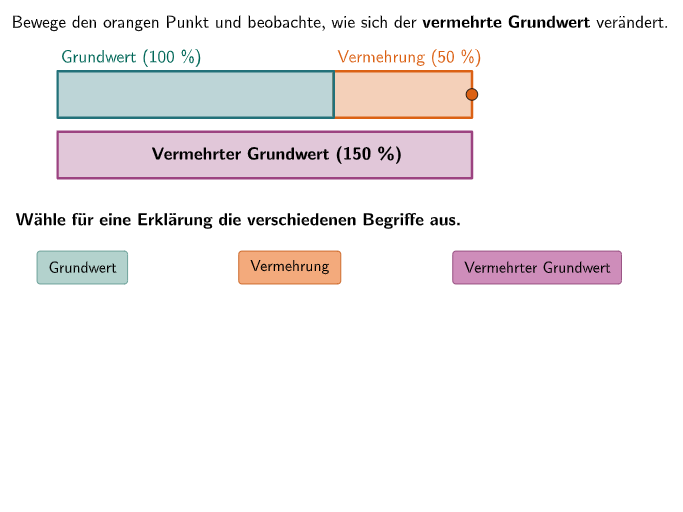
This GeoGebra example demonstrates how a base value changes after an increase by a given percentage, asking students to fill in blanks or choose answers for the percentage that the new value represents of the original—especially highlighting cases where the result exceeds 100%. Key math concepts include percent increase/decrease, the change factor (1 + rate), and the relationship new_value = original_value × (1 + rate) and therefore new_value/original_value × 100%. The construction uses the objects and logic reflected in the build: Sequence for step or lesson progression, Textfield for user inputs (Eingabefeld1/2), and Point-related objects (e.g., height, sizeall, O1, O2) to structure the interactive layout/visual elements. It also employs state and feedback controls such as listfixed/fixed, exnum/maxexnum, attempt counters, correct flags (correct1/2), and multiple buttons for starting, resetting, navigating steps, and showing solutions (showBtnSolution1/2, btnSolution1, btnReset, btnNochmal, btnLos, btnBack/btnNext). Suitable for grades 7–8 and for interactive practice on percentage calculations with change factors.
GeoGebra Commands & Parameters
Sequence(Midpoint[O1, O2] + (0, height / 2) + (m * (sizeall / 40, 0)), m, 1, 20) → l1Sequence(true, m, 1, maxstep) → listfixedTextfield(input1) → Eingabefeld1Textfield(input2) → Eingabefeld2Point(l1) → PPoint(Line[O1, yAxis]) → Q1
AI Drawing Prompt Reference
Draw a graph showing the change of an initial value after an increase by a given percentage. The graph includes a baseline, a change segment, a percentage input field, and two points. The baseline starts from one point, the change segment starts from another point, and the percentage input field is located above the change segment. The two points represent the initial value and the new value. Please draw the change segment according to the value in the percentage input field, so that the new value represents the percentage of the initial value. Especially, the graph should include an example showing the new value exceeds the initial value by 100%.
The prompt above was compiled from the original drawing commands and is for reference only.