
Calculating the Area of a Trapezium
Loading the math board and drawing, please wait…
In collections
Area of shapes
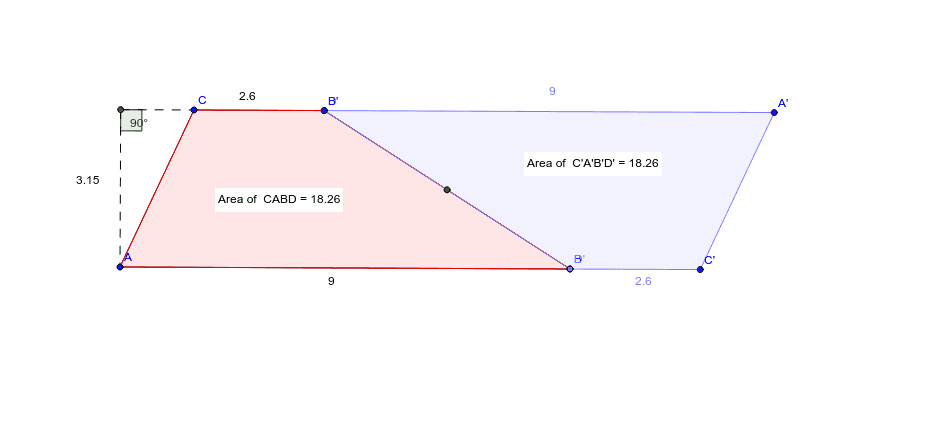
This example demonstrates how the area of any trapezium can be calculated by halving the size of a parallelogram. It involves core mathematical concepts such as trapezium, parallelogram, area calculation, and geometric transformations. The construction uses commands like Segment, Line, Point, Midpoint, Polygon, Rotate, PointIn, OrthogonalLine, Intersect, and Angle in GeoGebra. Suitable for middle school students and above learning area calculation methods, or for mathematical teaching demonstrations.
GeoGebra Commands & Parameters
Segment(A, B) → aLine(C, a) → bSegment(C, A) → cPoint(b) → DSegment(D, B) → dSegment(C, D) → eMidpoint(d) → EPolygon(C, A, B, D) → poly1, c_1, a_1, b_1, d_1Rotate(C, 180*°, E) → C'Rotate(A, 180*°, E) → A'Rotate(B, 180*°, E) → B'Rotate(D, 180*°, E) → D'Polygon(C', A', B', D') → poly1', c', a', b', d'PointIn(poly1) → Pointpoly1PointIn(poly1') → Pointpoly1'Line(C, e) → fOrthogonalLine(A, f) → gIntersect(f, g) → FSegment(F, A) → hSegment(F, C) → iAngle(A, F, C) → α
AI Drawing Prompt Reference
Draw a trapezium and a parallelogram with half the area of the trapezium. Demonstrate the area calculation by rotating half of the trapezium and constructing perpendicular lines. Start by drawing the trapezium's two bases and one non-parallel side, find the midpoint, rotate half of the trapezium, and draw the rotated shape and connecting lines. Finally, draw perpendicular lines from the top of the rotated shape to the non-parallel side, connecting the intersection points to the vertices to form two triangles and a trapezium, showing the area relationship.
The prompt above was compiled from the original drawing commands and is for reference only.