
Area of Trapezoid with Numbers
Loading the math board and drawing, please wait…
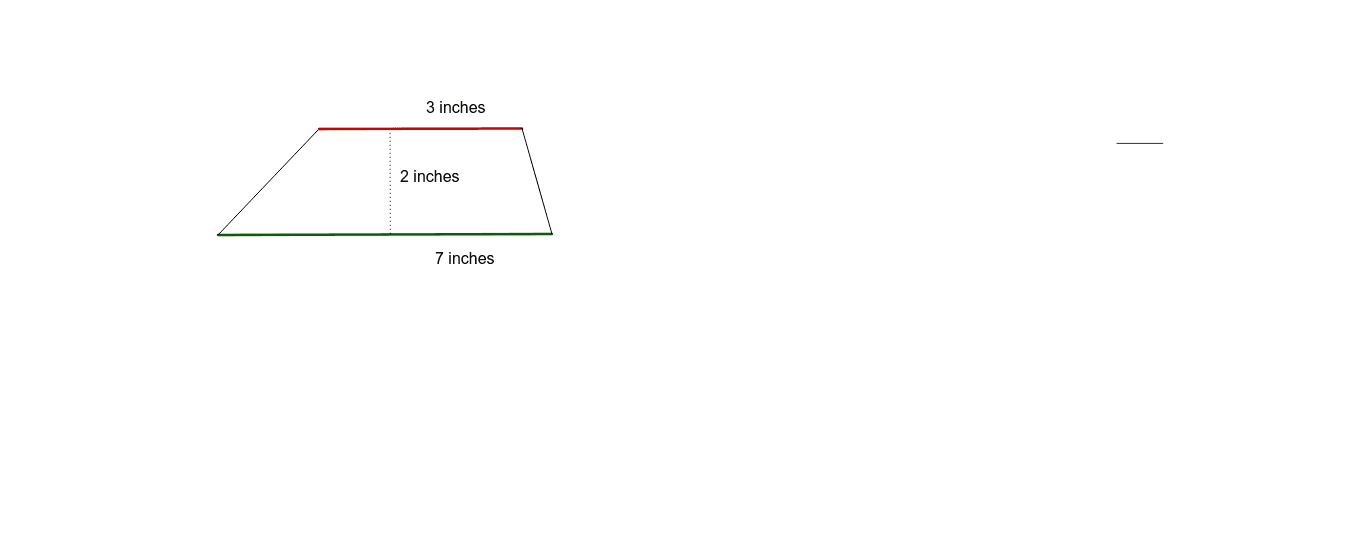
This example demonstrates how to use GeoGebra to draw a trapezoid with numerical markings and calculate its area. Key mathematical concepts include the properties of trapezoids and the area formula. By using commands such as Segment, Line, Point, OrthogonalLine, and Intersect, one can easily construct the trapezoid and add numerical markings. Suitable for students in middle school and above for learning geometric construction and area calculation.
GeoGebra Commands & Parameters
Segment(A, B) → aLine(C, a) → bPoint(b) → DSegment(A, C) → cSegment(D, C) → dSegment(D, B) → ePoint(d) → EOrthogonalLine(E, a) → fIntersect(f, a) → GSegment(E, G) → g
AI Drawing Prompt Reference
Draw a trapezoid on a coordinate plane. Start by placing two points on the bottom base and connect them with a segment. From one endpoint, draw a line parallel to the bottom base, and pick a point on this line to serve as the top vertex. Connect this top vertex to both bottom endpoints with segments to form the two legs, then connect the two top vertices to complete the top base. Choose a point on the top base, drop a perpendicular line to the bottom base, and mark the intersection. Connect this point to the intersection to show the height. Finally, label the lengths of all sides and display the calculated area of the trapezoid.
The prompt above was compiled from the original drawing commands and is for reference only.