
Area of a Regular Polygon by Alex Dostal
Loading the math board and drawing, please wait…
In collections
Unit 11: Extending Perimeter, Circumference, and Area
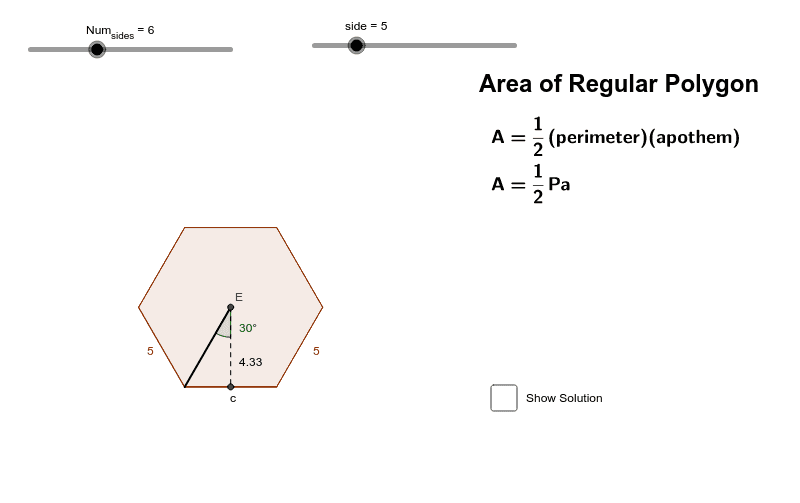
This example demonstrates how to dynamically calculate and visualize the area of a regular polygon using GeoGebra. It involves core mathematical concepts such as regular polygons, area formulas, central angles, side lengths, and trigonometric functions. The construction leverages commands and objects like Point, Segment, Polygon, Centroid, OrthogonalLine, Intersect, and Angle as outlined in the summary. It is suitable for high school mathematics education, helping students understand the derivation and parametric properties of the area formula for regular polygons.
GeoGebra Commands & Parameters
Point(Circle[(0, 0), side]) → BSegment((0, 0), B) → cPolygon((0, 0), B, Num_{sides}) → poly1, a, Solution, m, n, A, C, D, G, H, I, J, b, K, M, N, d, e, f, h, j, k, lCentroid(poly1) → EOrthogonalLine(E, c) → gIntersect(g, c) → FSegment(E, F) → apothemValSegment(E, O) → iIntersect(apothemVal, c) → LAngle(O, E, L) → α
AI Drawing Prompt Reference
Draw a regular polygon and dynamically calculate and visualize its area. Start by drawing a line segment from the center to a vertex of the polygon, then form the regular polygon using this vertex and the center. Find the centroid of the polygon, draw a perpendicular line from the centroid to the vertex, and mark the intersection point. Connect the centroid to this intersection point; this segment represents the apothem of the polygon. Measure the central angle, use the apothem and central angle to calculate the area of the polygon, and display the result.
The prompt above was compiled from the original drawing commands and is for reference only.