
球体体积计算器
几何画板及绘图内容加载中,请稍等……
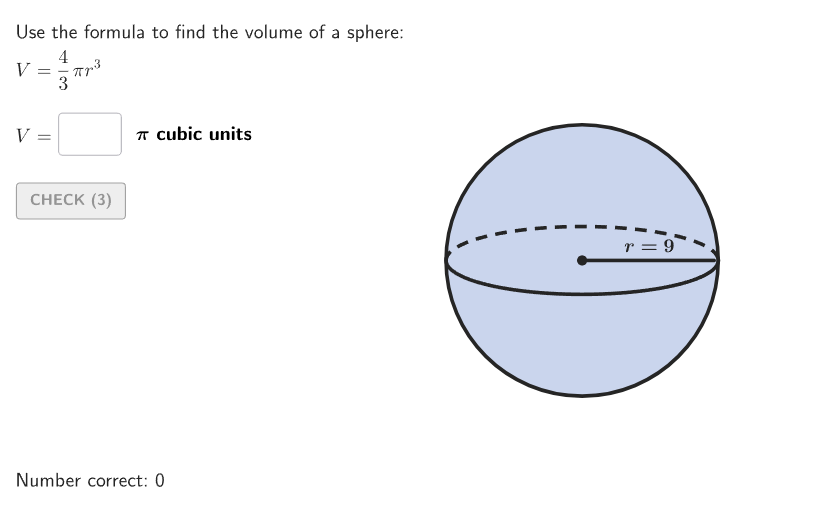
本范例通过交互式GeoGebra模型演示球体体积计算方法。核心数学概念是球体体积公式V=(4/3)πr³,涉及立体几何中的体积计算。作图要点:利用Circle命令绘制球体轮廓,Segment绘制辅助线展示半径,通过InputBox接收用户输入的半径值,结合If条件判断和Text文本输出实现答案验证与反馈,并使用randomNum系列命令生成随机练习题。适合6-8年级学生练习数形结合解决球体体积的实际应用问题。
GeoGebra 命令及参数
Shuffle(Sequence[20]) → randomList2, {9, 19, 7, 10, 12, 14, 3, 13, 11, 17, 18, 5, 20, 1, 8, 16, 6, 2, 4, 15}Shuffle(Sequence[10]) → randomList1, {3, 1, 5, 4, 6, 9, 8, 7, 2, 10}If(Element[randomList2, Mod[countQuestion, Length[randomList2]] + 1] ≤ 10, 1, 2) → randomNum2Textfield(input1) → InputBox1Textfield(input2) → InputBox2Polygon(Zip[PixelsToPoint[Corner[1], Corner[3], Corner[5], A], A, {(pixelsLeft, pixelsTop), (pixelsLeft, y(Corner[5]) - pixelsBottom), Corner[5] - (pixelsRight, pixelsBottom), (x(Corner[5]) - pixelsRight, pixelsTop)}]) → borderBoxCorner(5) → layoutAppSizeexpandSegment(A, B, (pulsing * 7), Corner[1], Corner[3], Corner[5]) → pulsingObjectonboardingTextOffset(Corner[onboardingText, 1], Corner[onboardingText, 3], onboardingCase, Corner[1], Corner[3], Corner[5]) → OnboardingTextOffsetElement({If[layoutX ≟ 16, layoutX - 5, 11], layoutX - 5}, layoutCase) → layoutHintSolnXCircle((0, 0), 1) → cCircle((0, 0), 1) → dSegment(C, (0.97, 0)) → hTranslate(hGL, Vector[(Vector[Corner[4], Corner[1]] / 500 * 24)]) → hGL'Translate((0.5, 0), Vector[(Vector[(0.5, 0), TargetPoint] * anim)]) → AnimPointText((("\phantom{r=}" * randomNum1) * "\\"), AnimPoint, true, true, 0, 1) → labelRadiusAnimText((("r=" * randomNum1) * "\\"), (0.5, 0.1), true, true, 0, 0) → labelRadiusSegment((0, 0), (-1, 0)) → iText(("d=" * (2 * randomNum1)), (0, 0), true, true, 0, -1) → labelDiam
AI 绘图提示语参考
请绘制一个表示球体体积计算的图形。图形中包含一个球体轮廓,由圆命令绘制而成。球体旁边有一个半径可视化线段,以及一个直径标记。图形中还包含一个输入框,用于输入半径值。此外,图形中有一个动画点,用于展示半径的变化。整体构造顺序是先绘制球体轮廓,然后添加半径线段和直径标记,接着添加输入框和动画点,最后添加文本标签来解释各个元素。
以上提示语为根据原始绘图命令整理而来,仅供参考。