
FLINKisten中的立方体高度计算
几何画板及绘图内容加载中,请稍等……
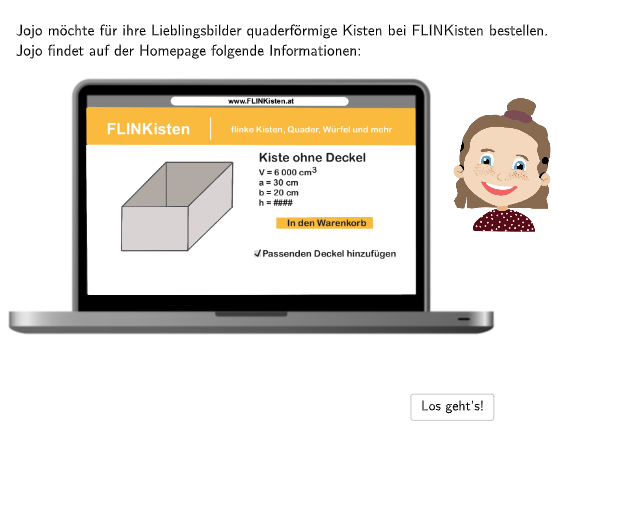
本范例演示如何计算FLINKisten网站上立方体的高度。涉及的核心数学概念是立体几何中的立方体体积和高度计算。通过使用GeoGebra命令如PointBubble、Bubble1等进行几何作图。适合7-8年级学生学习。
GeoGebra 命令及参数
SpeechBubbleRight(PointBubble + (0, 0.4), 11, 2.2) → Bubble1Textfield(input1) → InputBox1SpeechBubbleRight(S, 11.5, 2.6) → Bubble2SpeechBubbleRight(PointBubble + (0, 1), 8.5, 1.5) → Bubble3Textfield(input4) → InputBox4Textfield(input5) → InputBox5Textfield(input6) → InputBox6SpeechBubbleRight(PointBubble + (0, 1.8), 9.4, 1.5) → Bubble4SpeechBubbleRight(PointBubble + (0, 1.3), 12.7, 1.8) → Bubble5SelectedIndex(drop) → indexSpeechBubbleRight(PointBubble + (0, 1.3), 10.5, 1.6) → Bubble6Textfield(input2) → InputBox2Textfield(input7) → InputBox3Textfield(input8) → InputBox7Textfield(input9) → InputBox9Textfield(input10) → InputBox10Textfield(input11) → InputBox11
AI 绘图提示语参考
在坐标平面上绘制一个长方体的几何示意,用三维视角表示其各棱,并在合适位置标注用来计算高度所需的量。添加一个右侧的输入区域,并用气泡提示引导用户填入体积与边长/相关尺寸数值。随后再放置多个右侧文字气泡,分别对应高度计算所用的输入项;同时在图形附近放置输出提示,强调高度由体积与长宽等尺寸通过立体几何关系求得。整体先搭建立成立方体框架,再依次布置标注与输入气泡。
以上提示语为根据原始绘图命令整理而来,仅供参考。