
向量场中的旋度检测:探索与作图
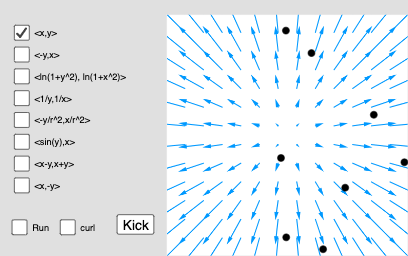
几何画板及绘图内容加载中,请稍等……
这个范例展示了如何通过几何构造检测向量场中的旋度现象。核心数学概念包括向量场、旋度以及微积分中的相关原理。作图要点涉及使用GeoGebra命令如Element, Polygon, Sequence, Setup, LFx, LFy等来构建向量场和计算旋度。适合高中生或大学低年级学生用于学习微积分和几何作图。
GeoGebra 命令及参数
Element(LFx, ind) → F1Element(LFy, ind) → F2Polygon((-4, -4), (4, -4), (4, 4), (-4, 4)) → back, f, g, h, iElement(Ltxt, ind) → curlTextElement(curlList1, ind) → curlValue1Element(curlList2, ind) → curlValue2Element(curlList3, ind) → curlValue3Element(curlList4, ind) → curlValue4Element(curlList5, ind) → curlValue5Element(curlList6, ind) → curlValue6Element(curlList7, ind) → curlValue7Element(curlList8, ind) → curlValue8Sequence(Segment[Rotate[P1 - (0.4, 0), j + curlAngle1, P1], Rotate[P1 + (0.4, 0), j + curlAngle1, P1]], j, 0, 2.0944, 1.0472) → spoke1Sequence(Segment[Rotate[P2 - (0.4, 0), j + curlAngle2, P2], Rotate[P2 + (0.4, 0), j + curlAngle2, P2]], j, 0, 2.0944, 1.0472) → spoke2Sequence(Segment[Rotate[P3 - (0.4, 0), j + curlAngle3, P3], Rotate[P3 + (0.4, 0), j + curlAngle3, P3]], j, 0, 2.0944, 1.0472) → spoke3Sequence(Segment[Rotate[P4 - (0.4, 0), j + curlAngle4, P4], Rotate[P4 + (0.4, 0), j + curlAngle4, P4]], j, 0, 2.0944, 1.0472) → spoke4Sequence(Segment[Rotate[P5 - (0.4, 0), j + curlAngle5, P5], Rotate[P5 + (0.4, 0), j + curlAngle5, P5]], j, 0, 2.0944, 1.0472) → spoke5Sequence(Segment[Rotate[P6 - (0.4, 0), j + curlAngle6, P6], Rotate[P6 + (0.4, 0), j + curlAngle6, P6]], j, 0, 2.0944, 1.0472) → spoke6Sequence(Segment[Rotate[P7 - (0.4, 0), j + curlAngle7, P7], Rotate[P7 + (0.4, 0), j + curlAngle7, P7]], j, 0, 2.0944, 1.0472) → spoke7Sequence(Segment[Rotate[P8 - (0.4, 0), j + curlAngle8, P8], Rotate[P8 + (0.4, 0), j + curlAngle8, P8]], j, 0, 2.0944, 1.0472) → spoke8
AI 绘图提示语参考
在一个正方形区域内,绘制表示向量场的箭头,并用不同颜色的线段显示向量场的旋度。首先画出正方形边界,然后在边界内绘制向量场,接着根据旋度计算结果,绘制不同角度和长度的线段,以可视化旋度的方向和大小。
以上提示语为根据原始绘图命令整理而来,仅供参考。