
Klecksaufgaben
Loading the math board and drawing, please wait…
In collections
Ordnen und Vergleichen von ganzen Zahlen
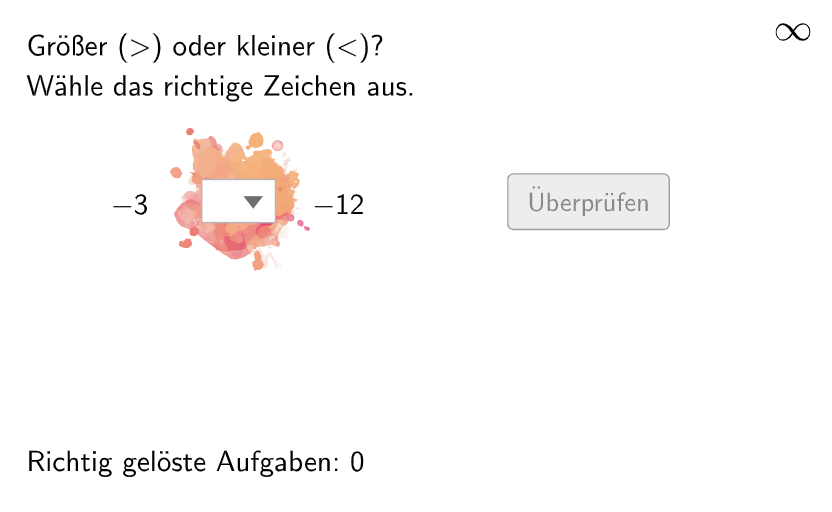
This example demonstrates how to use GeoGebra to show the comparison and ordering of integers. Students can adjust the numbers and symbols to change the value of the integers and observe the rules of comparison and ordering. The core mathematical concepts involved include the comparison and ordering of integers, as well as the application of integers in real-life situations. The construction points include using Random, Element, Sequence, and If GeoGebra commands to generate integer sequences, and using Textfield to input integer values. This example is suitable for middle school mathematics education, particularly for teaching integers and number theory.
GeoGebra Commands & Parameters
Random(-50, RandomElement[{0, 50}], 100) → randomNumbers1, {-3, -20, 0, -29, -23, -11, -49, -18, -50, -4, -11, -3, -32, -37, -1, -50, -22, -13, -38, -44, -2, -18, -39, 0, -33, 0, -27, -4, -37, -39, 0, -30, 0, -1, -35, -40, -23, -30, 0, -35, -21, -27, -29, -1, 0, -49, -28, -27, -40, -45, -10, -49, -13, -23, -31, -14, -41, -1, -35, -47, -14, -12, -31, -43, -25, -12, -46, -16, -49, -37, -11, -9, -42, -12, -26, -21, -22, -11, -33, -18, -17, -15, -16, -41, -19, -37, -38, -16, -30, -20, -16, -46, -25, -49, -42, -1, -39, -22, -9, -46}Element(randomNumbers1, Mod[questionCount, Length[randomNumbers1]] + 1) → randomNumber1Sequence(RandomElement[{1, 1, 2, 2, 3}], i, 1, 100) → randomTypes, {3, 1, 3, 2, 2, 2, 3, 1, 1, 2, 2, 3, 3, 3, 3, 3, 1, 1, 1, 1, 3, 2, 2, 2, 2, 3, 2, 2, 1, 1, 1, 2, 2, 1, 3, 3, 2, 3, 1, 2, 2, 1, 1, 1, 2, 2, 1, 1, 2, 1, 3, 2, 3, 1, 3, 2, 2, 2, 2, 3, 2, 2, 3, 2, 3, 2, 3, 3, 3, 2, 2, 3, 2, 2, 3, 3, 2, 1, 2, 1, 2, 2, 1, 1, 2, 2, 2, 2, 1, 1, 2, 1, 2, 2, 1, 2, 2, 3, 1, 1}Element(randomTypes, Mod[questionCount, Length[randomTypes]] + 1) → randomTypeRandom(-50, RandomElement[{0, 50}], 100) → randomNumbers2, {-12, -19, -43, -36, -37, -22, -28, -41, -2, -24, -40, -34, -39, -39, -12, -16, -17, -44, -26, -18, -27, -40, -14, -11, -15, -14, -15, -27, -42, -22, -13, -43, -47, -46, -12, -31, -42, -2, -38, -19, -13, -2, -25, -7, -14, -3, -41, -3, -41, -18, -44, -20, -11, -35, -10, 0, -21, -11, -40, -30, -18, -32, -40, -10, -13, -35, -40, -11, -42, -44, -6, -3, -20, -8, -18, -4, -46, -23, -50, -47, -26, -30, -38, -44, -23, -20, -3, -41, -29, -24, -3, -2, -17, -7, -33, -3, -50, -20, 0, -40}Element(randomNumbers2, Mod[questionCount, Length[randomNumbers2]] + 1) → randomNumber2If(randomNumber1 < randomNumber2, 1, If[randomNumber1 > randomNumber2, 2, If[randomNumber1 ≟ randomNumber2, 3, 0]]) → randomSymbolTextfield(input1) → inputBox1Textfield(input2) → inputBox2If(randomType ≟ 1, (0.5, 6.5), If[randomType ≟ 2, (3.8, 6.5), (2.15, 6.5)]) → AimgKlecks
AI Drawing Prompt Reference
Create a coordinate-plane style exercise graphic for integer comparison. Randomly generate two integers and determine a comparison symbol placed between them to indicate “less than”, “equal to”, or “greater than” according to their values. Also generate a practice-type sequence that cycles among three categories and use it to decide the display position of the symbol on the layout. Add two editable text fields where the user can enter new integer values, so the comparison relationship can be updated. Build it in steps: pick the random integers and types, compute the symbol, place it at the chosen position, then add the two input boxes.
The prompt above was compiled from the original drawing commands and is for reference only.