
Solve linear equations with inverse operations (arrow-step visualization)
Loading the math board and drawing, please wait…
In collections
Gleichungen lösen mit Umkehroperationen
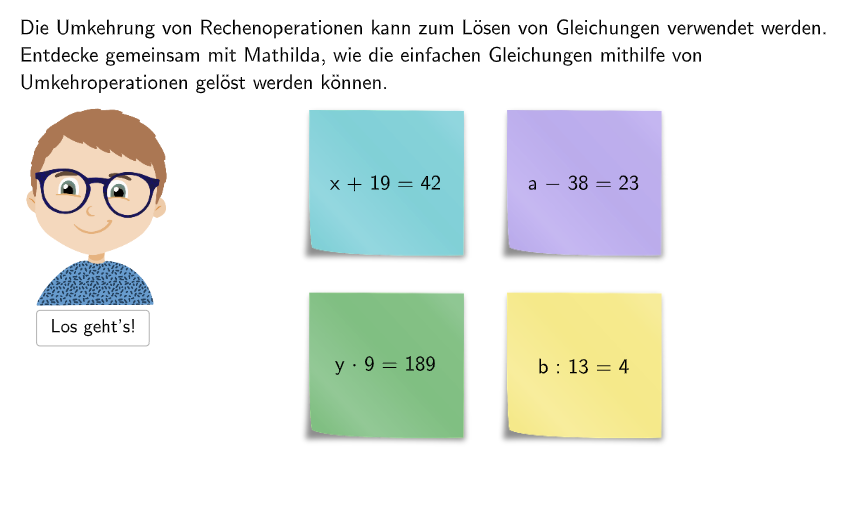
This GeoGebra example visualizes how to solve simple one-variable linear equations by showing the inverse-operation process as arrow steps. It supports both multiple-choice and open-response questions, helping learners connect each algebraic transformation with the corresponding inverse action that preserves equality. The key math concepts are linear equations, inverse operations (undoing addition/subtraction and multiplication/division), and applying the same operation to both sides of an equation. Construction and interactivity are built using GeoGebra commands and UI objects such as Sequence and Element to generate and manage step elements, Text/Textfield (e.g., txtSolution, txtHint, txtFeedback) to present prompts and feedback, SelectedIndex with dropdown controls for multiple-choice selection and validation, and geometric/arrow visualization using Segment, PolyLine, and Invert to depict the direction of inverse steps. Objects like validate, showsolution, and inputBox help check answers and guide step-by-step reasoning. Suitable for grades 5–6 and early algebra practice in class or self-study.
GeoGebra Commands & Parameters
Sequence(Random[1, 10], i, 1, 10) → randomNumbers, {10, 1, 5, 4, 2, 6, 2, 8, 5, 6}Element(randomNumbers, Mod[questionCount, Length[randomNumbers]] + 1) → randomNumberTextfield(input) → inputBoxSelectedIndex(dropdown031) → index031SelectedIndex(dropdown041) → index041SelectedIndex(dropdown042) → index042Textfield(input051) → InputBox051Segment(PosSeg1, PosSeg1 + (segLength, 0)) → seg1Text((("\textsf{" * number2) * "}"), PosSeg1 + (segLength + 0.15, 0.1), false, true, 1, 0) → txtRes1Invert(pixMat) → invPixMatSegment(PosSeg2, PosSeg2 + (segLength, 0)) → seg2Text((("\textsf{" * number2) * "}"), PosSeg2 + (segLength + 0.15, 0.1), false, true, 1, 0) → txtRes2If(step ≟ 3, correctdd031, step ≟ 4, correctdd041, step ≟ 5, correct051, true) → clickableBtnNextPolyLine(PosSB, Corner[txt021, 1] + (0.25, 0), Corner[txt021, 2] + (0.1, 0), Corner[txt021, 3] + (0.1, 0.1), Corner[txt021, 4] + (0, 0.1), Corner[txt021, 4] + (0, -0.2), PosSB) → sb02PolyLine(PosSB, Corner[txt031, 1] + (0.5, 0), Corner[txt031, 2] + (0.1, 0), Corner[txt031, 3] + (0.1, 0.1), Corner[txt031, 4] + (0, 0.1), Corner[txt031, 4] + (0, -1), PosSB) → sb03PolyLine(PosSB, Corner[txt041, 1] + (0.5, 0), Corner[txt041, 2] + (0.1, 0), Corner[txt041, 3] + (0.1, 0.1), Corner[txt041, 4] + (0, 0.1), Corner[txt041, 4] + (0, -1), PosSB) → sb04If(Task ≟ 1, Translate[imgBlau, Vector[PosImgBlau1, PosImgPostIt1]], Task ≟ 2, Translate[imgLila, Vector[PosImgLila1, PosImgPostIt1]], Task ≟ 3, Translate[imgGrün, Vector[PosImgGrün1, PosImgPostIt1]], Translate[imgGelb, Vector[PosImgGelb1, PosImgPostIt1]]) → imgPostItPolyLine(PosSB, Corner[txt051, 1] + (0.5, -0.1), Corner[txt051, 2] + (0.1, -0.1), Corner[txt051, 3] + (0.1, 0.1), Corner[txt051, 4] + (-0.1, 0.1), Corner[txt051, 1] + (-0.1, -0.1), PosSB) → sb05
AI Drawing Prompt Reference
Draw a simple linear equation solving process graph, including a randomly generated number and an equation. The graph should have an arrow indicating the inverse operation process, and arrows pointing to the corresponding inverse operations on both sides of the equation. The graph should have a multiple-choice option and an input box, where users can choose the correct inverse operation or input their answer. The graph should have a hint and a feedback message to help users understand the inverse operation process.
The prompt above was compiled from the original drawing commands and is for reference only.