
Function Surface & View Direction Demo
Loading the math board and drawing, please wait…
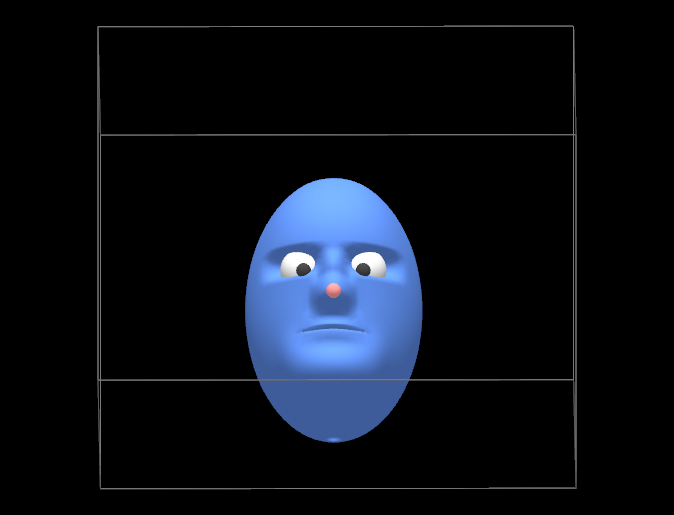
This example demonstrates creating surfaces with two-variable functions in GeoGebra and adjusting viewing angles using SetViewDirection. Key math concepts include function graphs, 3D geometry, and perspective transformation. Construction highlights involve commands like Sphere, PointIn, Dilate, Intersect, If, Surface, Midpoint, Ray, IntersectPath, and ClosestPoint, along with objects such as b, h, g, M, MM, E_1, E_2, E, F_2, F_1, F, etc. Suitable for high school and above to explore function surfaces, 3D geometry, and advanced GeoGebra techniques.
GeoGebra Commands & Parameters
Sphere((0, 0, 0), 30) → bSphere((7.4, -2.8, 2), 2) → hSphere((7.4, 2.8, 2), 2) → gPointIn(b) → MDilate(M, 2) → MMIntersect(Ray[(7.4, 2.8, 2), MM], g) → E_1, E_2If(Defined[E_1], E_1, E_2) → EIntersect(Ray[(7.4, -2.8, 2), MM], h) → F_2, F_1If(Defined[F_1], F_1, F_2) → FSurface((((10 * cos(u)) * cos(v)) * f(u, v)), (((8 * sin(u)) * cos(v)) * f(u, v)), (12 * sin(v)), u, -3.14159, 3.141592653589793, v, -1.5708, 1.5708) → sPointIn(h) → APointIn(g) → BMidpoint(E, F) → CRay(C, MM) → aIntersectPath(Plane[(20, 0, 0), (20, 1, 0), (20, 0, 1)], b) → cClosestPoint(c, M) → MP
AI Drawing Prompt Reference
Create a 3D scene with two spheres and a function surface. Place one sphere centered at the origin with a radius of 30, and another sphere at (7.4, -2.8, 2) with a radius of 2. Select a point on the first sphere, expand outward from this point, and find intersections with the second sphere to get two points. Then intersect these points with the sphere at (7.4, 2.8, 2) to get a third point, which serves as a vertex for the function surface defined by a two-variable function within specific bounds. Finally, connect the midpoint of two points on the spheres to the expansion point with a ray.
The prompt above was compiled from the original drawing commands and is for reference only.